Create Employee
This guide explains how to create employees in VoxHRM.
Employee creation happens in two structured steps:
- Employee Details — Basic user information
- Job Details — Organizational and employment configuration
Before You Begin
Ensure your organization structure is already configured:
- Organization
- Business Units
- Locations
- Departments
- Designations
- Employee Number Series (if using auto-generated numbers)
Recommended configurations:
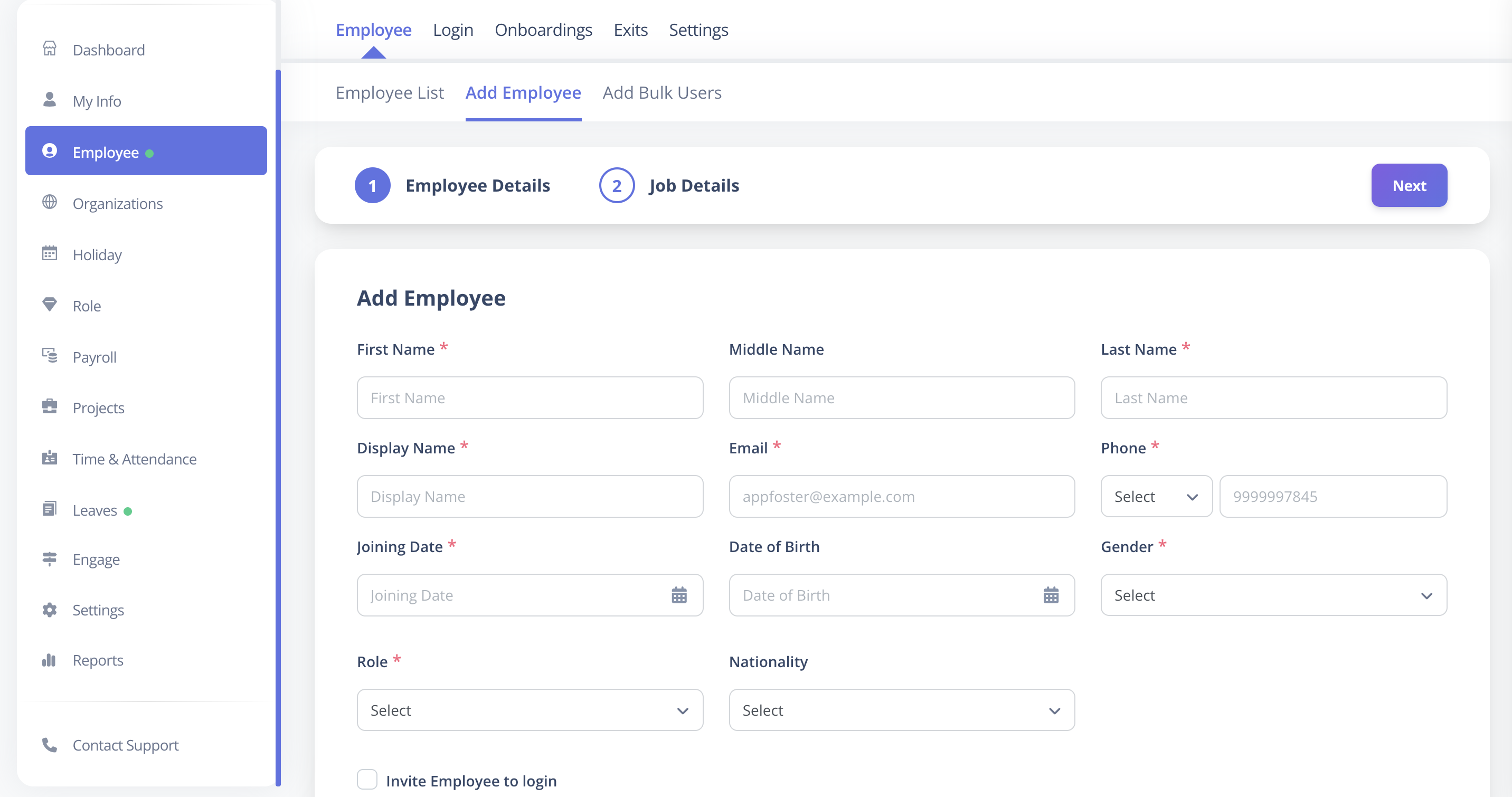
Employee Details
This step creates the User record.
Enter the following details:
| Field | Description |
|---|---|
| First Name | Employee’s legal first name. |
| Last Name | Employee’s legal last name. |
| Display Name | Auto-generated using First + Last Name. Can be edited if needed. |
| Must be unique. Used for login and notifications. | |
| Phone | Contact number of the employee. |
| Joining Date | Official employment start date. |
| Gender | Employee’s gender information. |
| Role | Defines system access and permissions. |
| Date of Birth | Used for records and compliance purposes. |
| Nationality | Employee’s citizenship information. |
| Invite to Login | If enabled, a login invitation email is sent after creation. |
- Email must be unique across the system.
- Duplicate emails are not allowed.
Once completed, click Next to proceed to Job Details.
Job Details
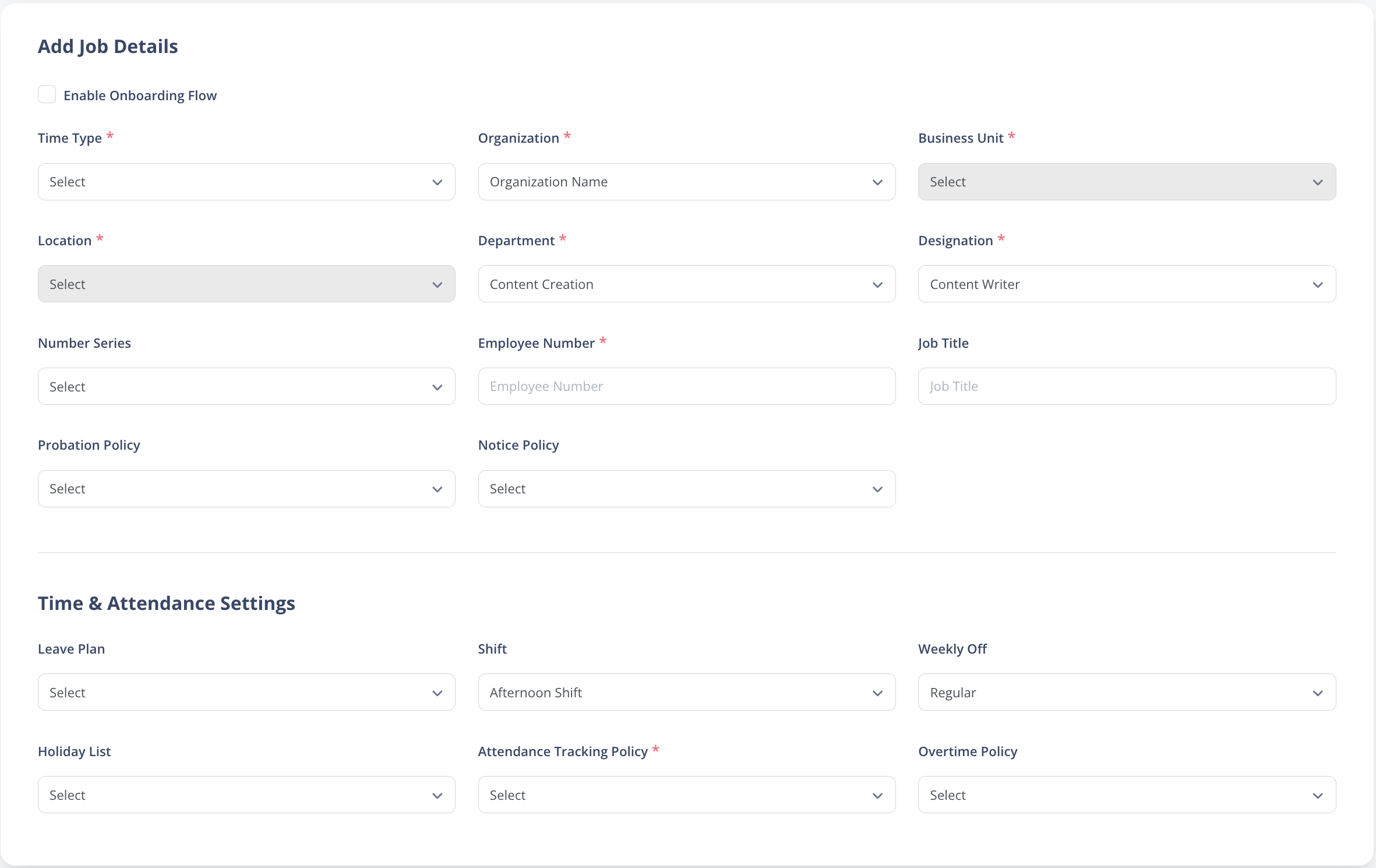
This step creates the Employee Job record, defining how the employee is structured within the organization.
| Field | Description |
|---|---|
| Time Type | Employment type (Full-time, Contract, etc.). |
| Organization | Legal entity the employee belongs to. |
| Business Unit | Sub-division within the organization. |
| Location | Assigned work location. |
| Department | Department within the organization. |
| Designation | Employee’s official role or title. |
| Employee Number | Must be unique. Can be auto-generated or manually entered. |
| Attendance Tracking Policy | Defines how attendance is monitored. |
| Holiday Plan | Assigned company holiday calendar. |
| Leave Plan | Leave entitlement configuration. |
| Shift | Assigned work shift schedule. |
| Weekly Off | Weekly rest day configuration. |
| Probation Policy | Defines probation duration and rules. |
| Notice Period Policy | Defines resignation notice requirements. |
| Overtime Policy | Governs overtime calculation and eligibility. |
- Employee Number must be unique.
- It can be auto-generated via Number Series or entered manually.
After submission:
- A User record is created
- A Job record is linked
- The employee appears in Employee Listing
Both Employee Details and Job Details can be edited later from the employee profile.
Bulk Import Employees
If you need to add multiple employees at once, use the Bulk Import feature.
How Bulk Import Works
- Download the sample CSV file.
- Fill in employee data using the required format.
- Upload the updated CSV file.
- The system processes and creates users.
- You are redirected back to the Employee Listing page.
User synchronization may take a few seconds to reflect in the list.
Sample CSV Format
CSV Fields
| Column | Description |
|---|---|
| first_name | Employee’s first name. |
| last_name | Employee’s last name. |
| Must be unique across the system. | |
| joining_date | Format: YYYY-MM-DD. |
| is_login_allowed | true / false. Sends login invite if true. |
All users added via bulk import automatically receive login invitations.
Key Rules
- Email must be unique.
- Employee Number must be unique.
- Bulk import creates User records.
- Job Details can be configured or updated later.
This ensures structured employee creation aligned with organizational policies.