Number Series
Number Series in VoxHRM allows you to automatically generate structured employee numbers using configurable prefixes, suffixes, and digit formatting.
Accessing Number Series
- Log in to VoxHRM.
- Navigate to Employees.
- Click on Settings.
- Select Number Series.
You will land on the Number Series Listing Page.
Number Series Listing Page
On this page, you will see a table with the following columns:
- Series Name
- Prefix
- Suffix
- Preview Number
- Status (Active / Inactive)
- Actions ( View | Edit | Delete )
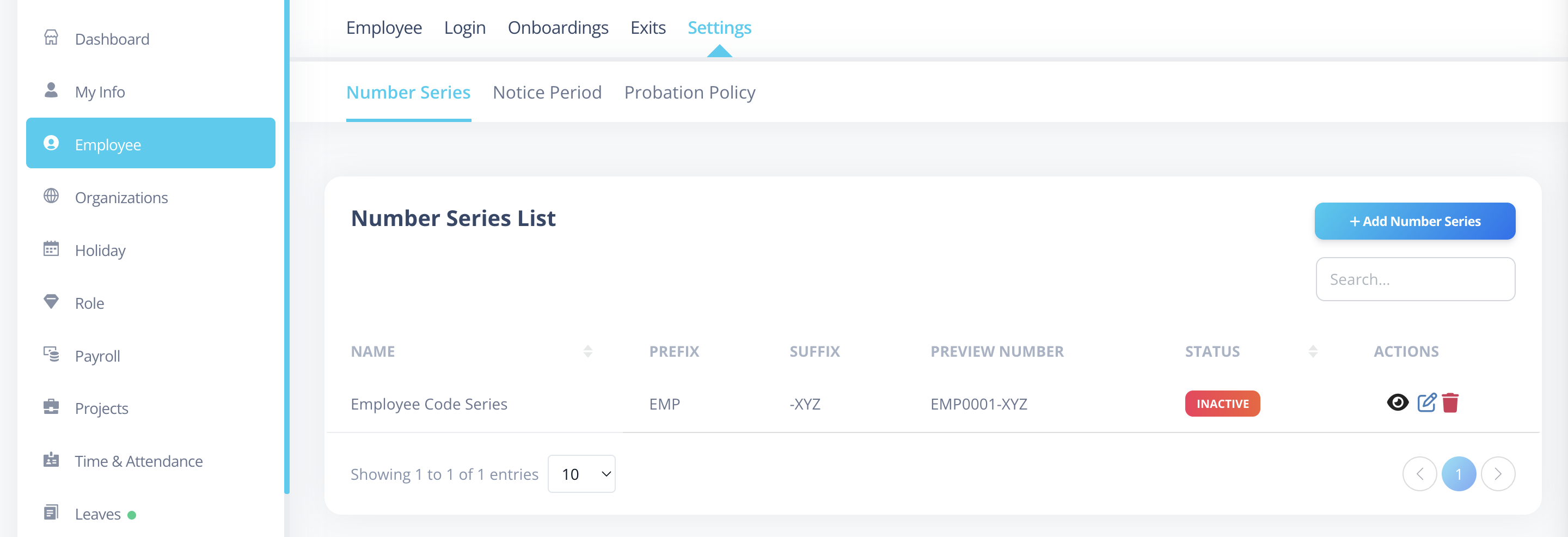
An Add Number Series button is available at the top-right corner.
Creating a Number Series
Click the Add Number Series button.
You will be redirected to the Create Page.
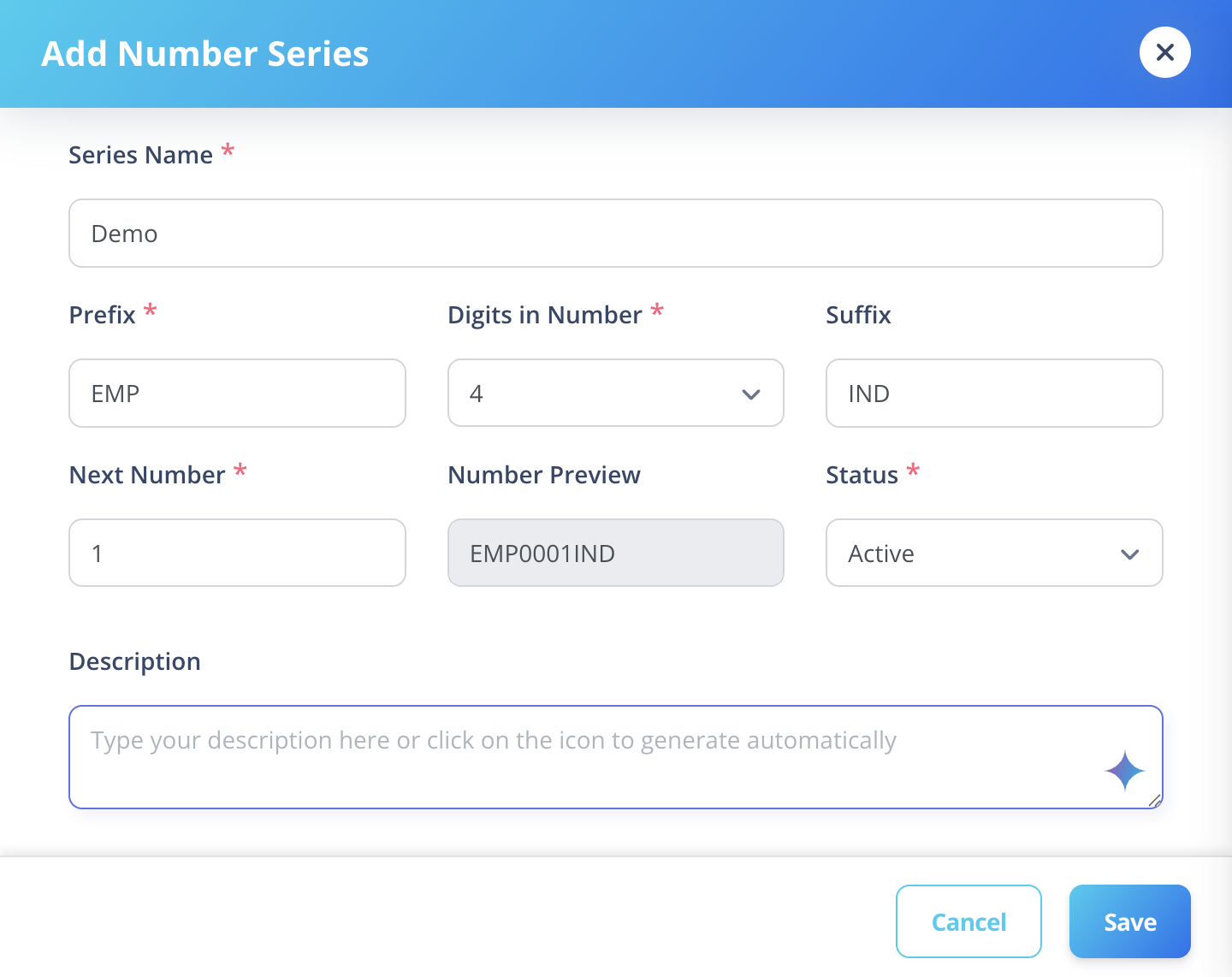
Fields Explained
1️⃣ Series Name
- Unique name for the number series.
- Cannot duplicate another series.
2️⃣ Prefix
- Text that appears before the number.
- Example:
EMP,HR,IND
3️⃣ Digits in Number
- Defines how many digits the numeric part should contain.
- Example: If set to
4, number will appear as0001.
4️⃣ Suffix
- Text that appears after the number.
- Optional field.
5️⃣ Next Number
- The starting number for the series.
- Used when no employees are assigned yet.
6️⃣ Number Preview
- Displays a real-time preview of the final employee number.
- Example:
EMP0001IND
7️⃣ Status
- Active → Can be assigned to employees.
- Inactive → Cannot be used for new employees.
8️⃣ Description
- Optional notes about the number series.
How Employee Numbers Are Generated
When a new employee is created using a Number Series:
- The system checks the highest existing employee number for that series.
- Extracts the numeric portion.
- Increments it by Next Number field.
- Formats it according to the digit count.
- Applies prefix and suffix.
Example:
If:
- Prefix =
EMP - Digits =
4 - Suffix =
IND - Last number =
EMP0007IND
Next employee number will be:
EMP0008IND
If no employees exist yet:
- The system starts from the configured Next Number.
Viewing a Number Series
Click the icon in the Actions column to view details of a Number Series.
Editing a Number Series
Click the icon in the Actions column.
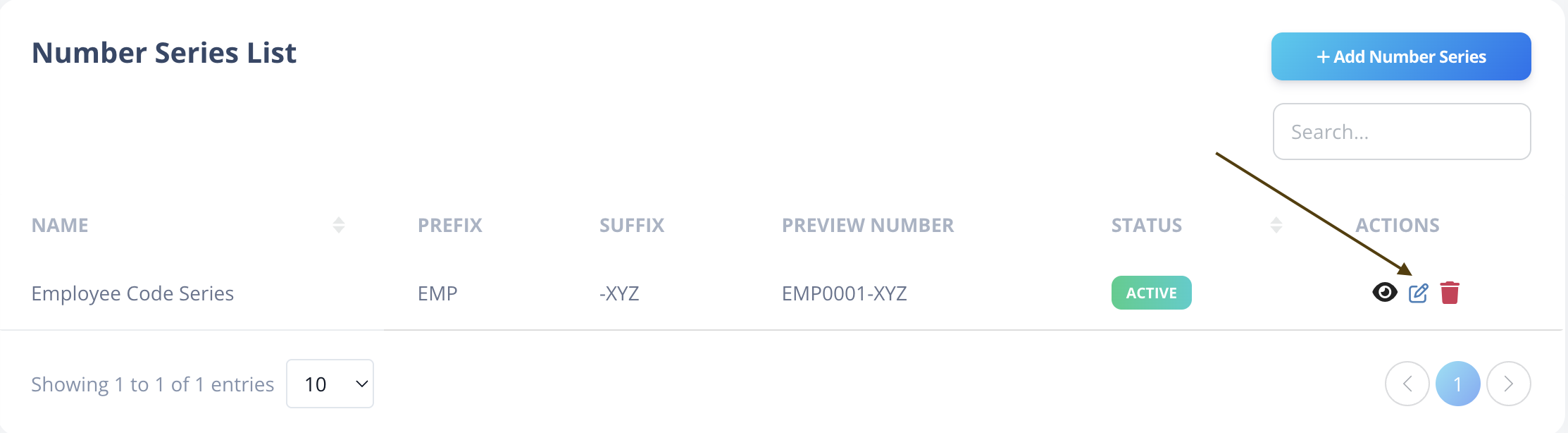
You can update:
- Prefix
- Suffix
- Digit count
- Status
- Description
⚠ Changing digit count or format does not modify already assigned employee numbers.
Deleting a Number Series
Click the icon in the Actions column.
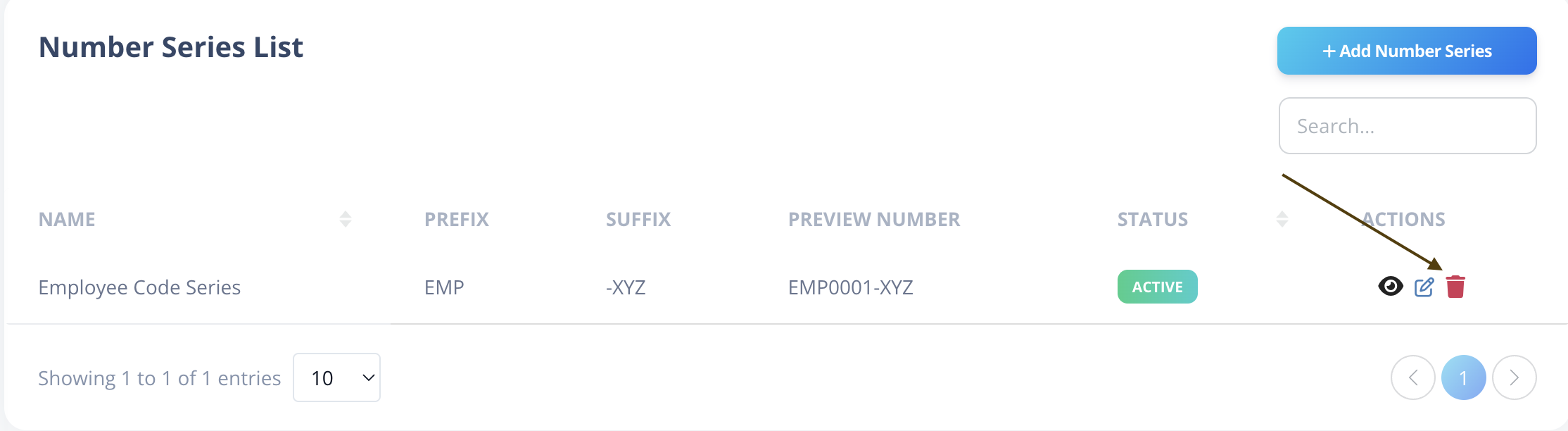
Important Rule
A Number Series can only be deleted if:
- It is not assigned to any employee.
If it is already in use, deletion will not be allowed.
Best Practices
- Keep prefixes short and meaningful.
- Avoid changing format after assigning employees.
- Use separate series for different business units if needed.
- Always test preview before activating.