Roles & Permissions
Roles in VoxHRM allow you to control what users can access and manage within the system.
Each role defines a set of permissions that determine page visibility and actions available to users.
Accessing Roles
- Log in to VoxHRM.
- From the left sidebar, click Roles.
You will land on the Roles Listing Page.
Roles Listing Page
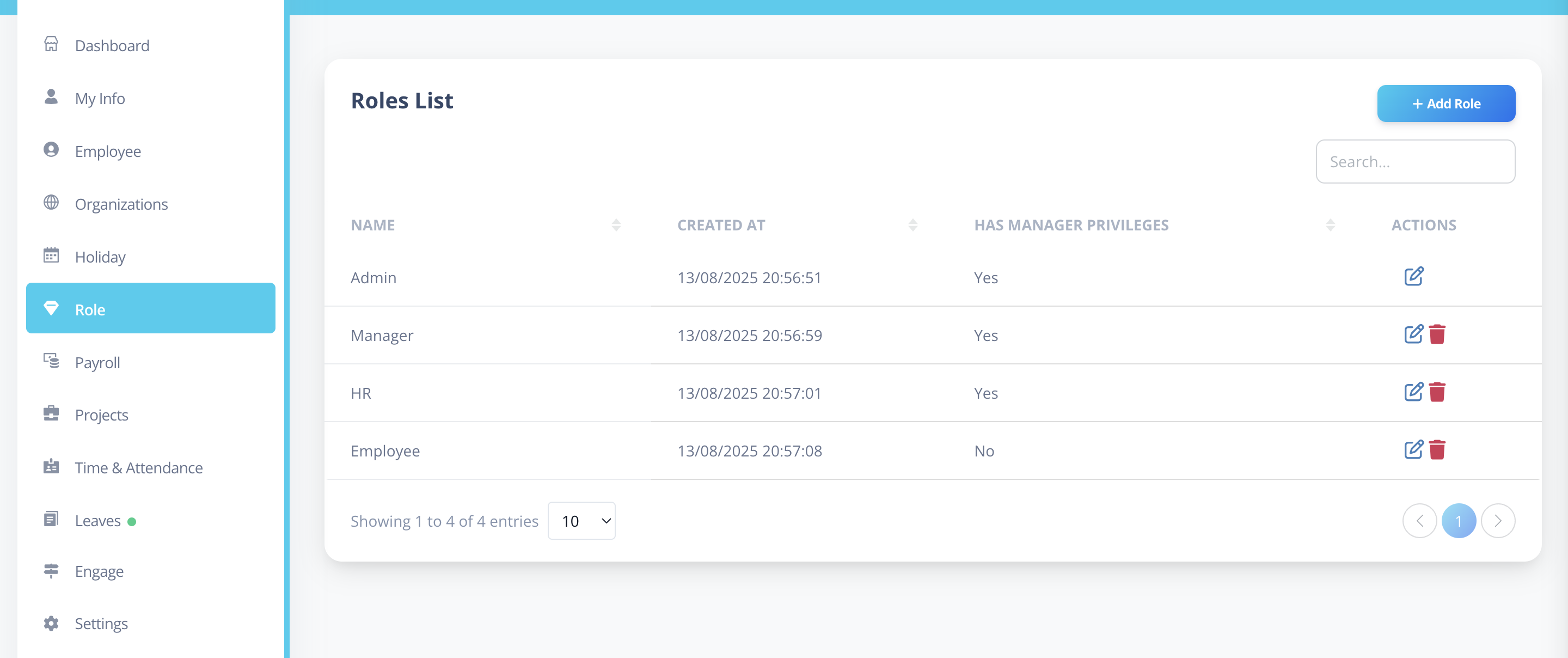
On this page, you will see a table with:
- Role Name
- Created At
- Has Manager Privileges
- Actions ( Edit | Delete )
Has Manager Privileges
The Has Manager Privileges column indicates whether users assigned to that role can be selected as a Reporting Manager in an employee’s Job Details.
Roles with Manager Privileges:
- Appear in the Reporting Manager dropdown
- Can be assigned as managers to other employees
By default, the following roles have Manager Privileges enabled and cannot be modified:
- Admin
- HR
- Manager
For all other roles, this setting can be enabled or disabled during role editing.
Creating or Editing a Role
To create a new role, click the Add Role button on the Roles Listing page.
To update an existing role, click the icon in the Actions column corresponding to that role.
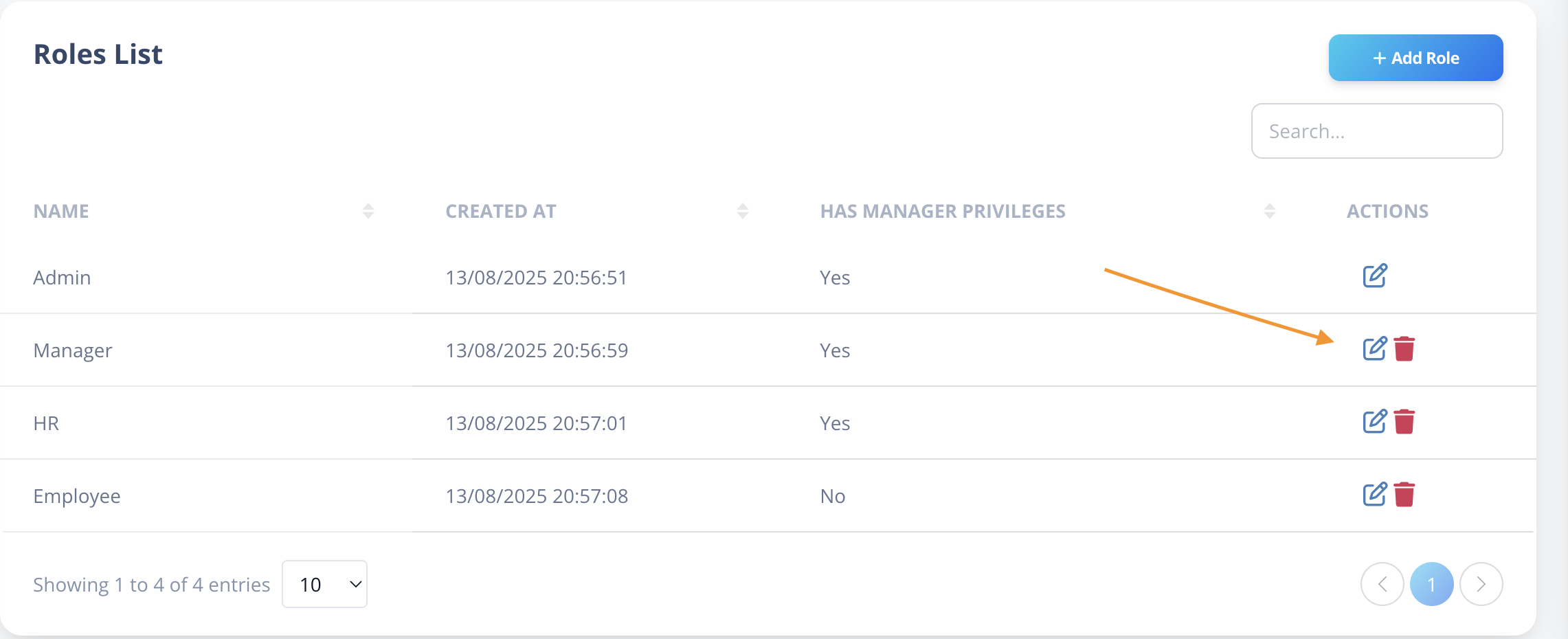
You will be redirected to the Edit Role Page.
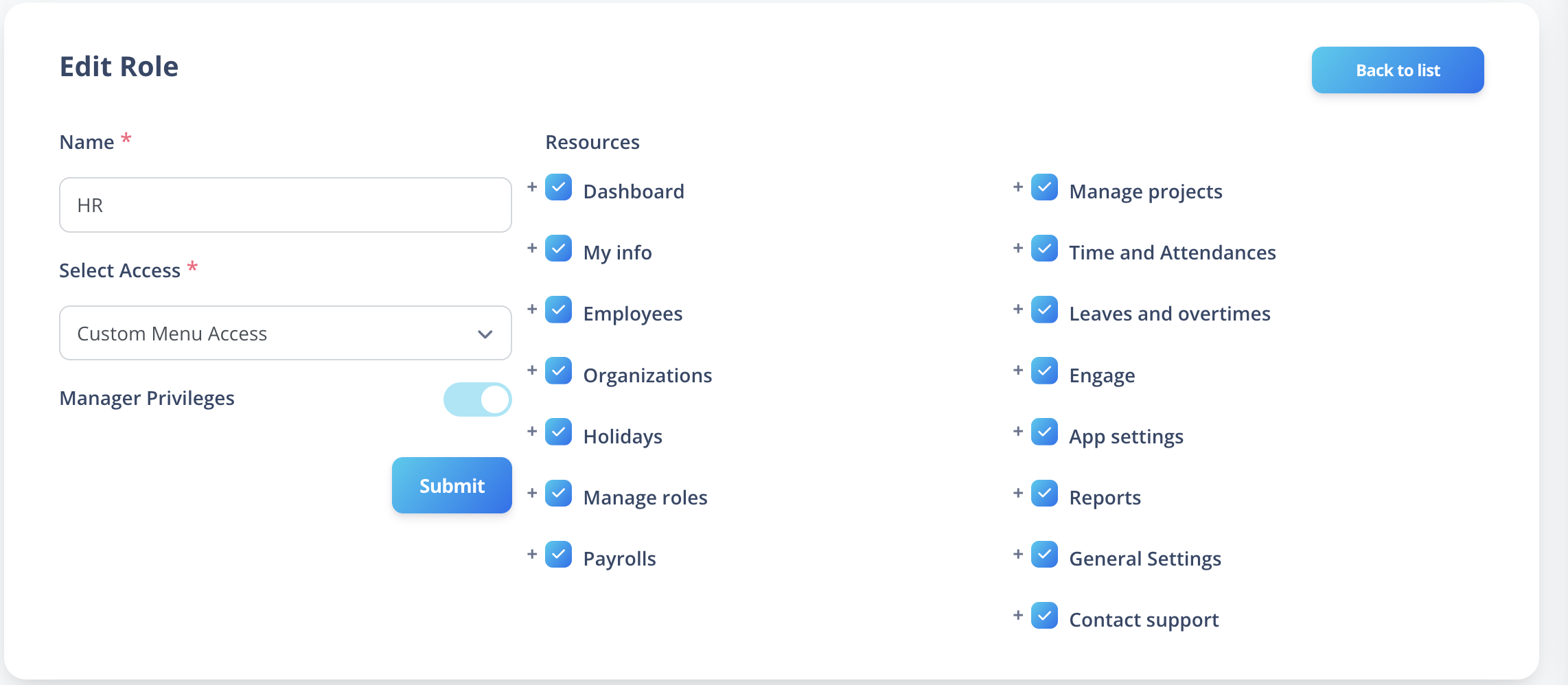
On this page, you will see:
- Role Name
- Has Manager Privileges toggle
- Role Access dropdown
- Permissions Tree
Role Name
- Must be unique
- Cannot duplicate an existing role name
Role Access
You will see a dropdown labeled Role Access with two options:
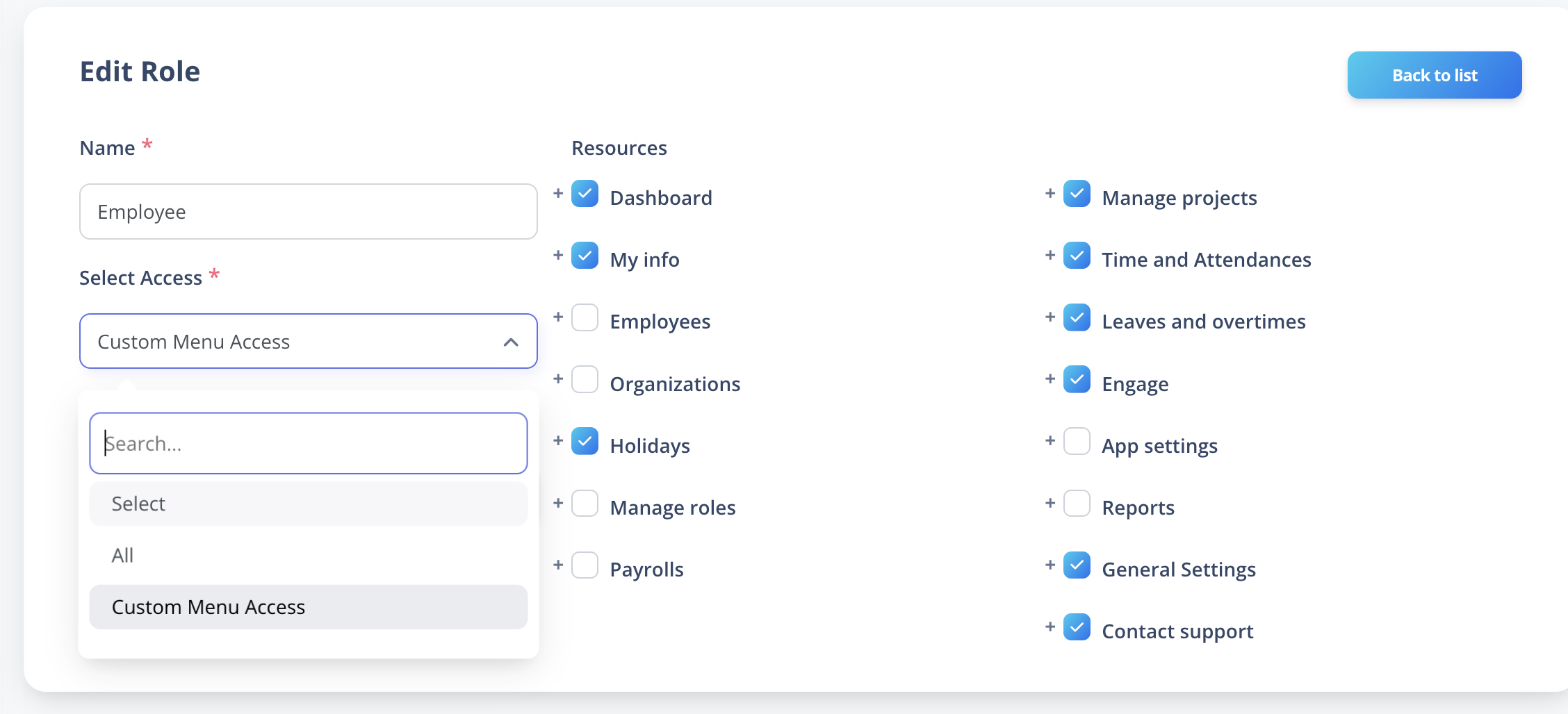
1️⃣ All Access
- Grants all available permissions
- User will have full system access
- Disables all permission checkbox toggles.
2️⃣ Custom Menu Access
- Allows manual selection of permissions
- Displays the permissions tree
- Recommended for controlled access
Understanding the Permissions Tree
Permissions are structured hierarchically to reflect the structure of the web application.
This means:
- Top-level menus represent major modules (e.g., Organization).
- Each module contains sections (e.g., Manage Organization, Manage Documents, Manage Assets).
- Each section contains nested permissions (e.g., Departments, Locations, Legal Entities, etc.).
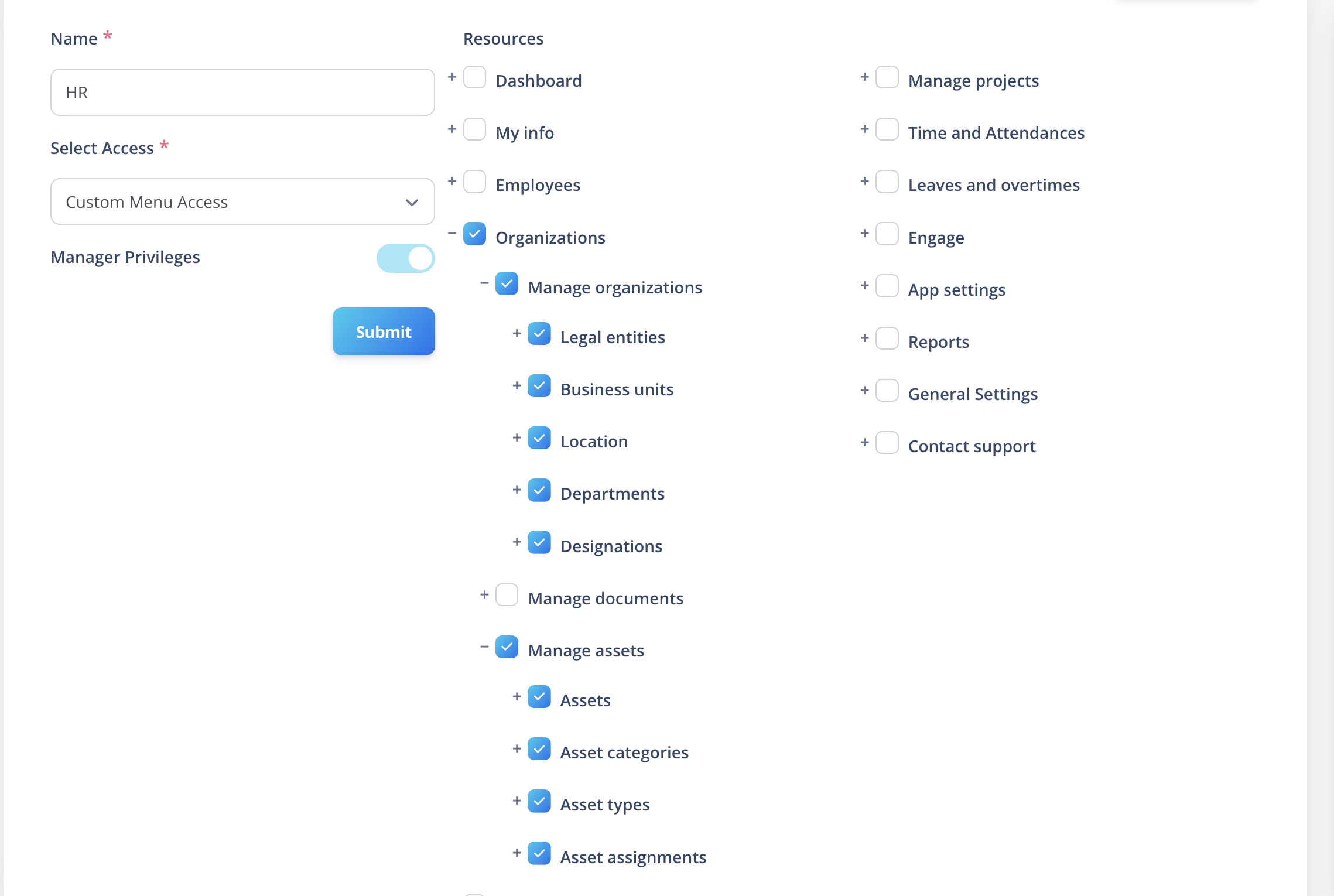
In the example above:
- Organization is the parent menu.
- Inside it, we have:
- Manage Organization
- Manage Documents
- Manage Assets
- Each of these contains further nested permissions.
Because of this structure, permissions can be deeply nested.
Important Rule
If you want to assign a child permission, you must also enable its parent permission.
Without the parent permission:
- The child permission will not function.
- The related page or feature will not be accessible.
Example: Giving Access to Departments Only
Let’s assume you want to give a role full access to Departments (View, Create, Edit, Delete), but only within the Organization module.
To access Departments in the application, the navigation path is:
Organization → Manage Organization → Departments
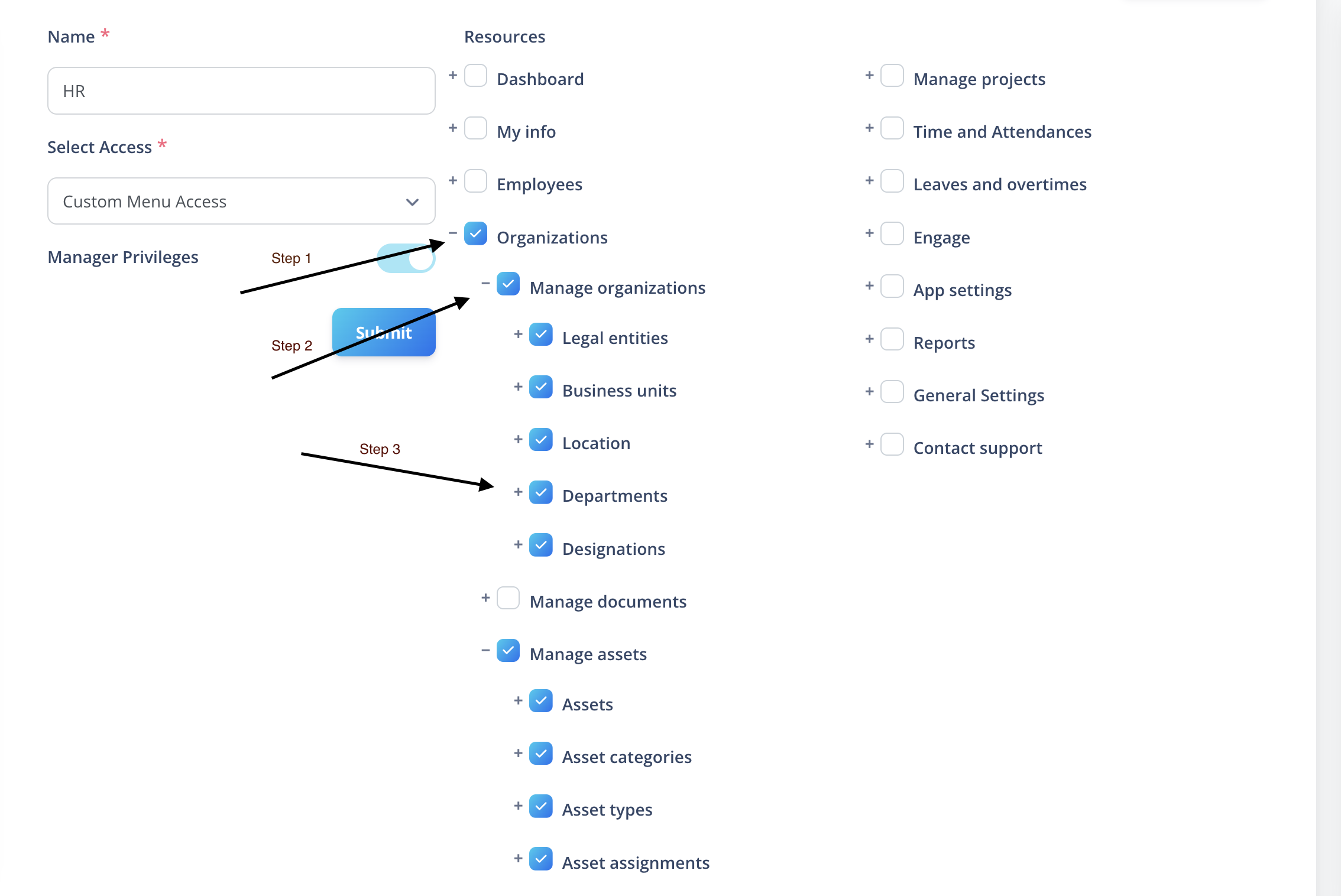
Follow these steps:
Step 1: Enable Organization
Check the Organization permission.
This expands all nested permissions under it.
Note: When a parent permission is selected, all child permissions are selected by default.
Step 2: Select Manage Organization
Under Organization, enable Manage Organization.
Since we only want Departments access, you should uncheck other sections like:
- Manage Documents
- Manage Assets
This ensures the user only gets access to what is required.
Step 3: Select Departments
Under Manage Organization, locate and enable:
- Departments
This will automatically allow the user to:
- View Departments
- Create Departments
- Edit Departments
- Delete Departments
(Assuming all other required role details are completed.)
Why Parent Permissions Matter
Even if “Departments” is selected:
- If Manage Organization is not selected, Departments will not work.
- If Organization is not selected, the entire module will not be accessible.
Always ensure the full hierarchy is respected:
Organization
→ Manage Organization
→ Departments
This structured permission system ensures:
- Clean access control
- Logical menu visibility
- Secure feature restriction
- Dynamic UI rendering based on role permissions
How Permissions Work
If parent-child rules are followed correctly:
- Menu items are shown dynamically
- Pages become accessible based on permissions
- Buttons and actions appear only if allowed
- Entire UI adjusts dynamically based on role
This ensures:
- Clean access control
- Secure feature exposure
- No unnecessary UI clutter
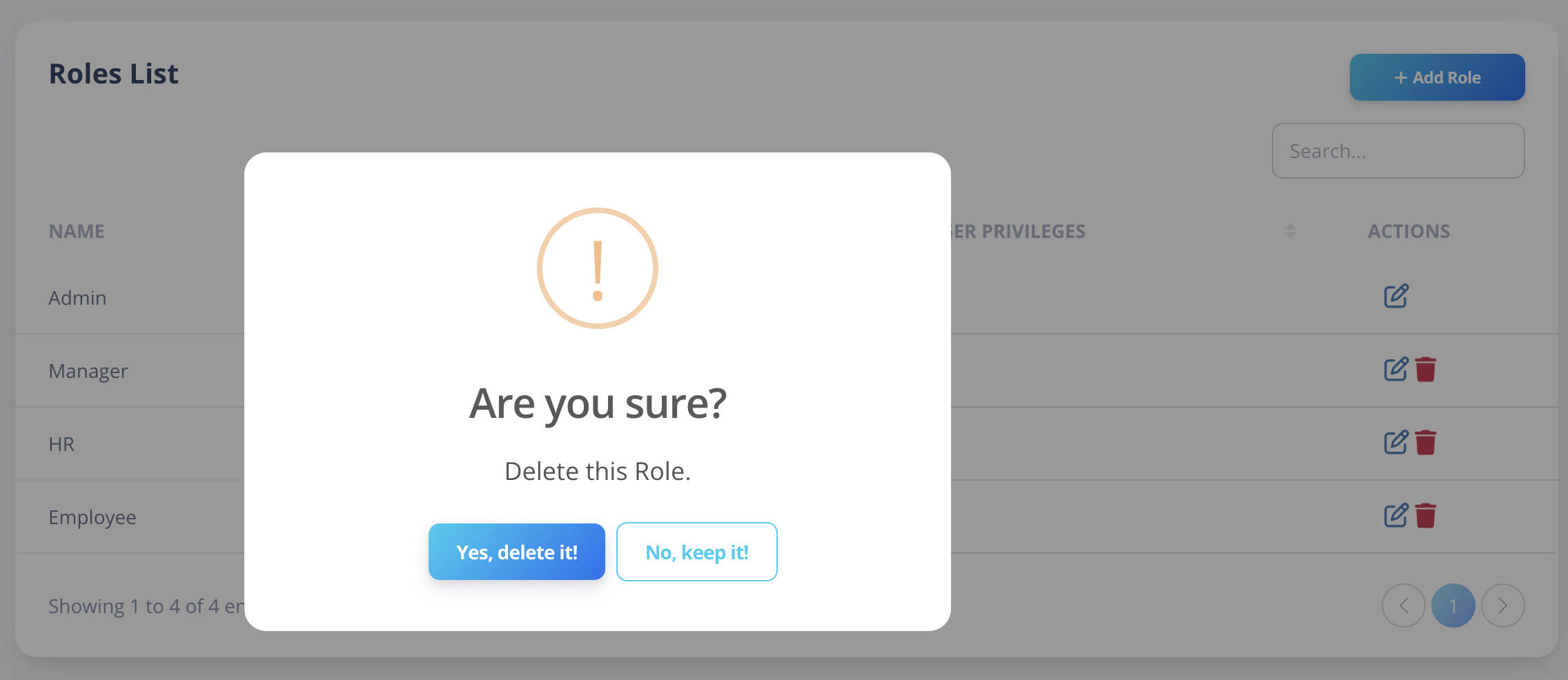
Deleting a Role
- Roles can be deleted from the listing page.
- You should not delete system roles (Admin, HR, Manager, Employee).
Best Practices
- Keep role structure simple and purpose-based.
- Avoid creating too many overlapping roles.
- Always test permissions using a test user before assigning broadly.
- Grant the minimum required permissions (Principle of Least Privilege).