User Preferences
User Preferences allow you to customize your app experience according to your needs.
You can modify:
- App Theme
- Sidebar Appearance
- Language
- Date Format
- Time Format
- Timezone
Theme Customization
Open Theme Configurator
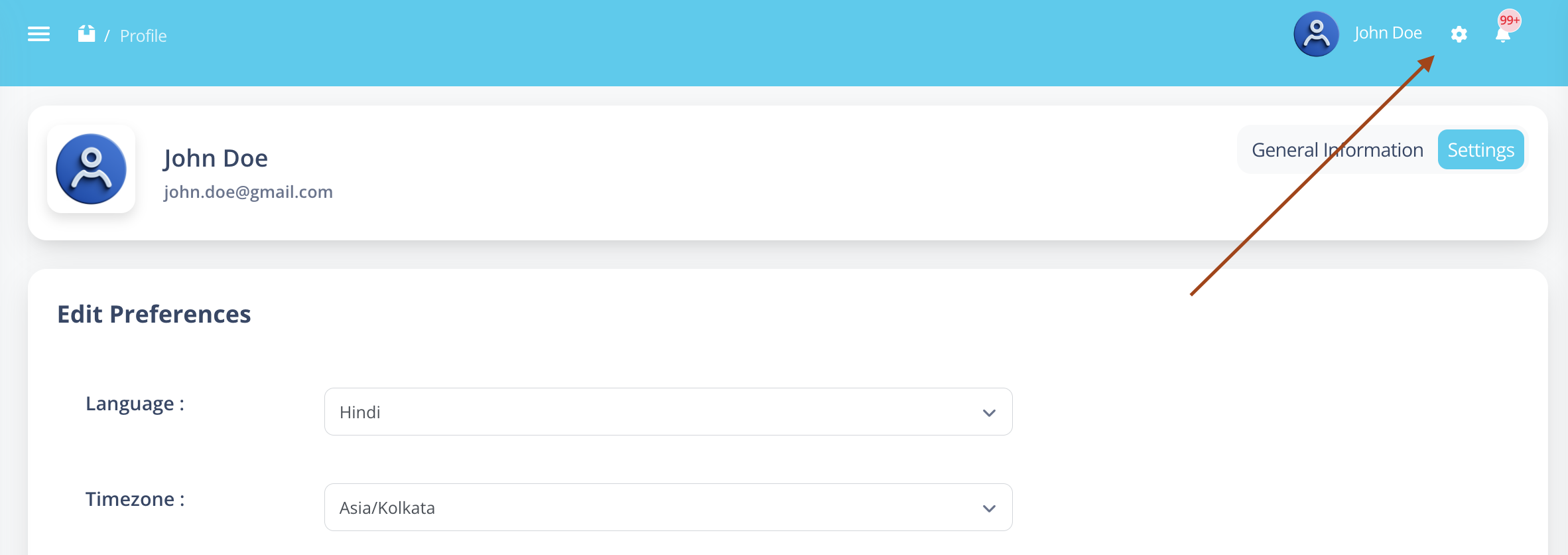
- Go to the top-right corner of the dashboard.
- Click on the Gear Icon (⚙️) beside your profile name.
This opens the Theme Configurator panel.
Customize the Theme
Once the Theme Configurator is open, you can adjust the following settings:
Change Theme Color
- Under Theme Colors, choose your preferred color (e.g., Blue, Green, Red).
- Click on any of the color circles to apply it.
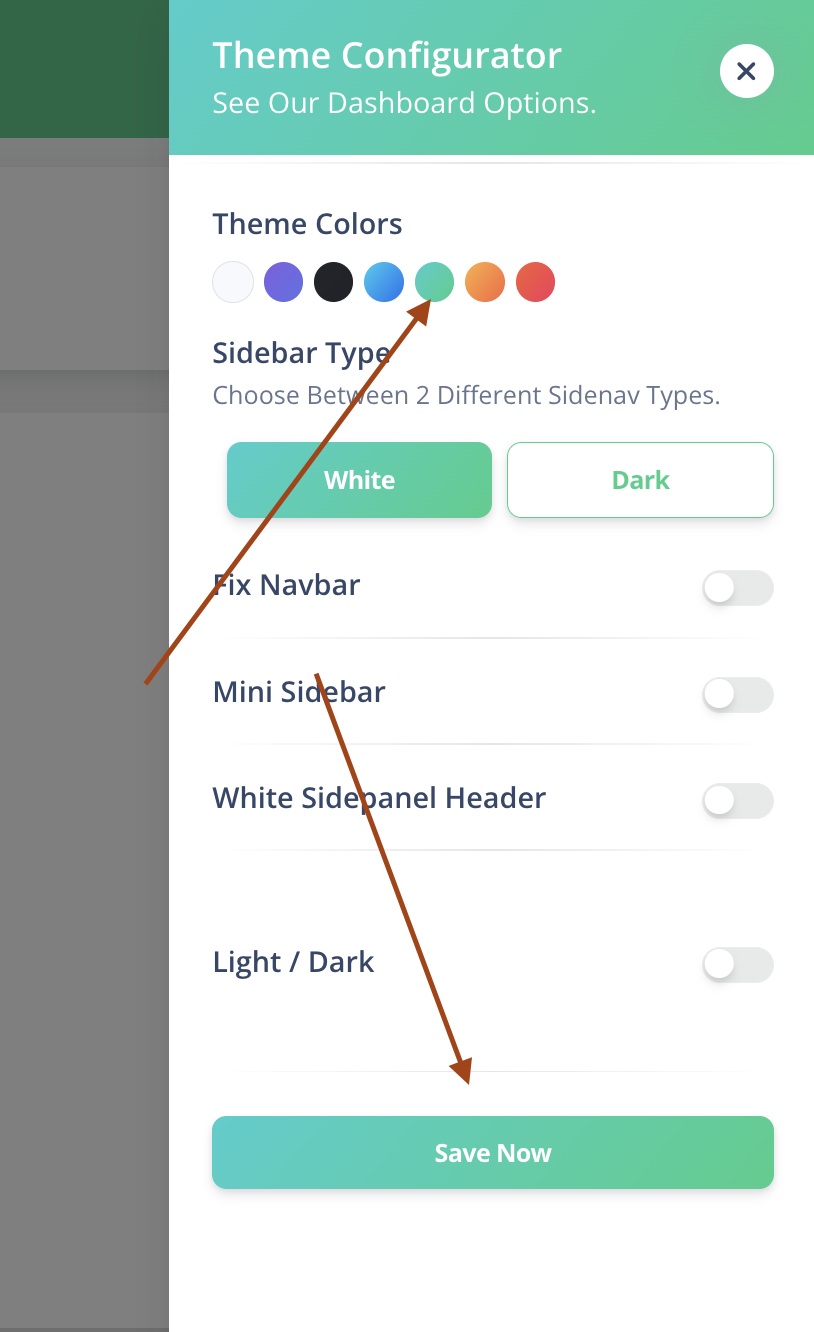
Choose any color you like and then click on Save now
Set Sidebar Type
You can choose between:
- White – Default Light Mode Sidebar
- Dark – Dark Sidebar Experience
Click either White or Dark to apply.
Toggle Theme Options (Optional)
You can enable or disable the following:
- Fix Navbar – Keeps the navbar static while scrolling
- Mini Sidebar – Collapses sidebar to icons only
- White Sidepanel Header – Changes header to white
- Light / Dark Toggle – Switches entire dashboard theme
Use the toggle switches to adjust based on your preference.
Save Settings
After making changes:
- Click the blue Save Now button at the bottom of the Theme Configurator.
- Your preferences will be saved and applied immediately.
Update System Preferences
You can also update system-related preferences from your profile.
Open My Profile
- Click your name in the top-right navigation bar.
- Select My Profile.
- Click on the Settings section.
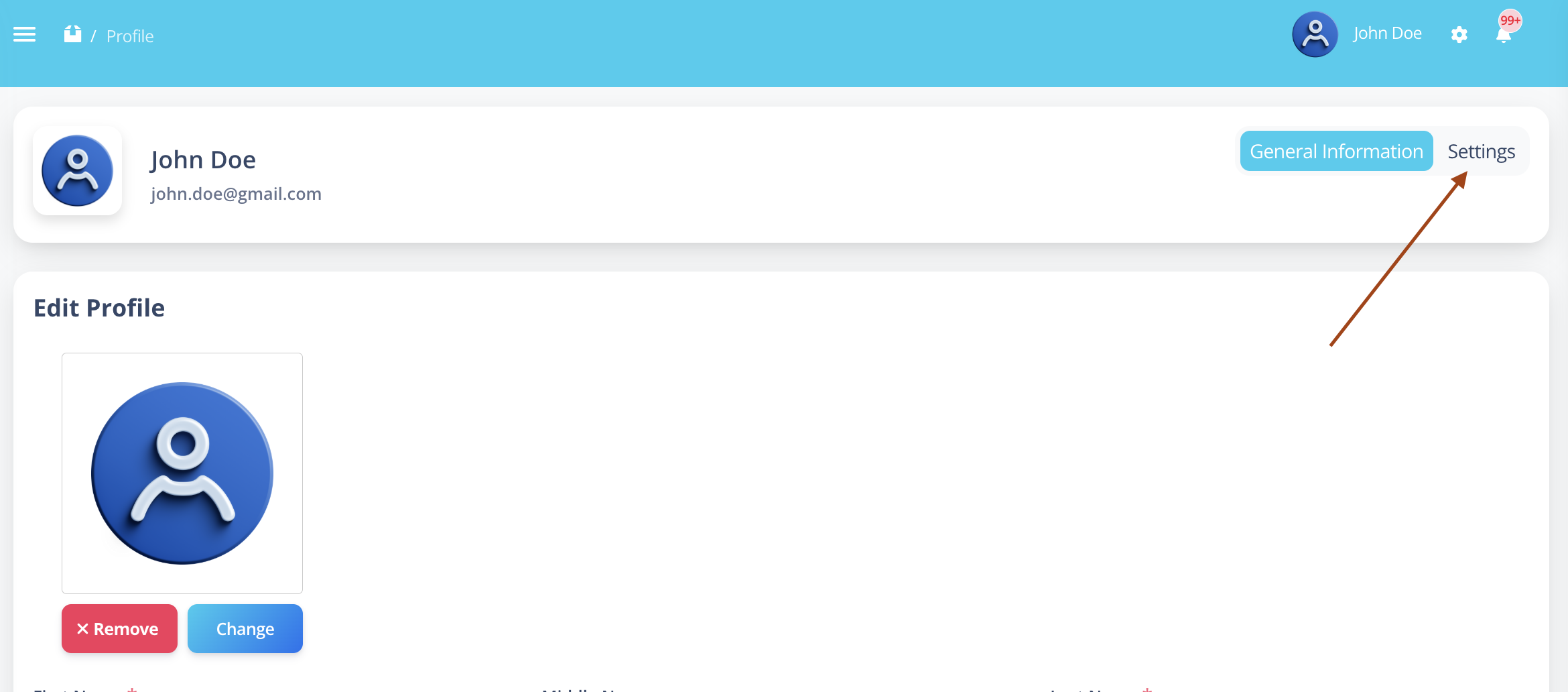
Available Preferences
You can update the following options:
Language
- Click on Language
- Select your preferred language from the dropdown
- Click Update Preference
The application language will change immediately.
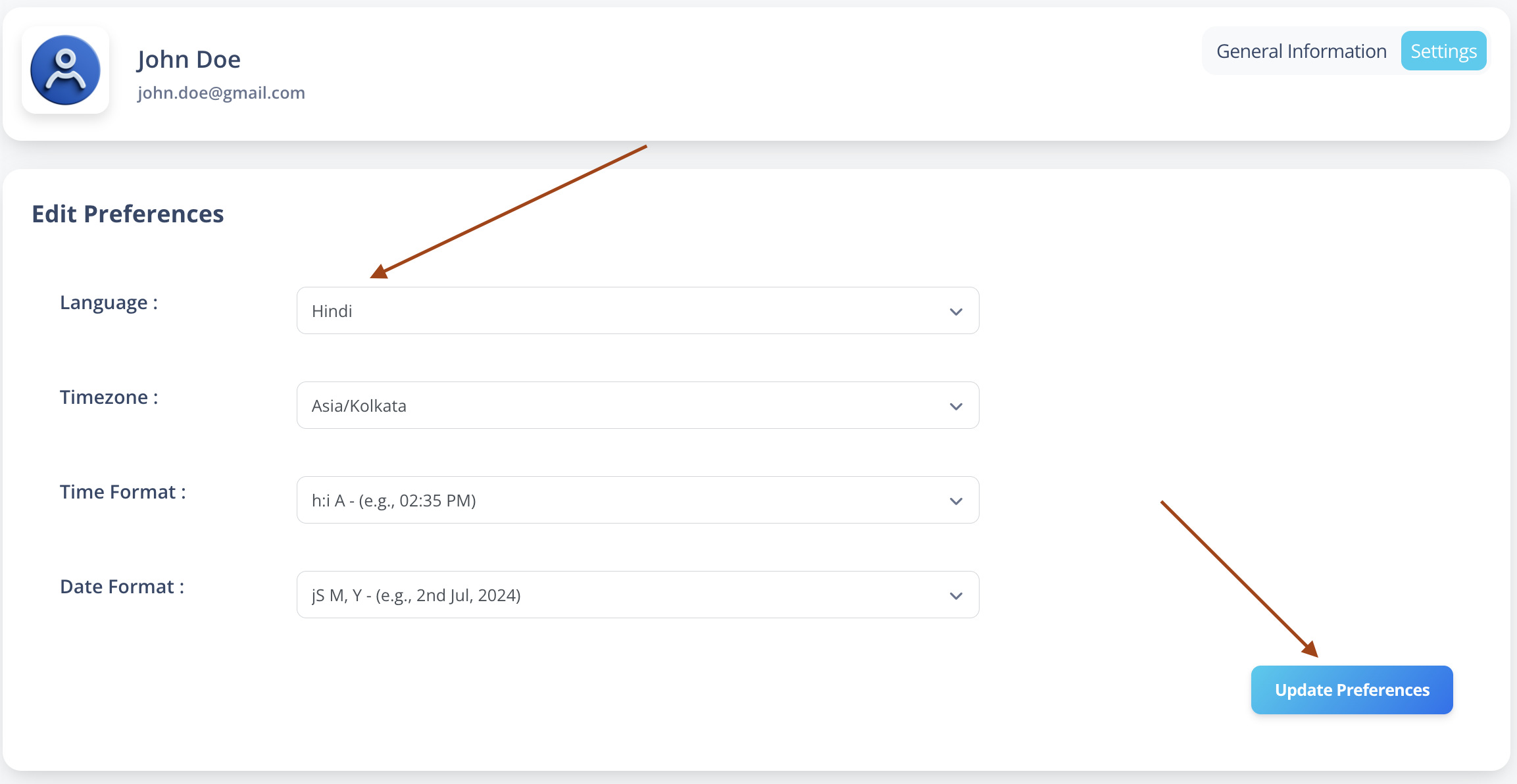
Date Format
- Select your preferred date format from the dropdown
- Click Update Preference
Time Format
- Choose your preferred time format (e.g., 12-hour or 24-hour)
- Click Update Preference
Timezone
- Select your timezone from the dropdown
- Click Update Preference
Final Step
After making changes:
Click the Update button at the bottom-left of the page.
Your preferences will be saved successfully.