Update Password
You can update your password anytime from your profile settings after logging into the platform.
Step 1: Open the Profile Menu
Once logged in:
- Go to the top-right corner of the navigation bar.
- Click on your name.
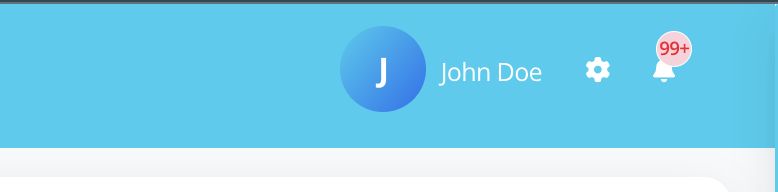
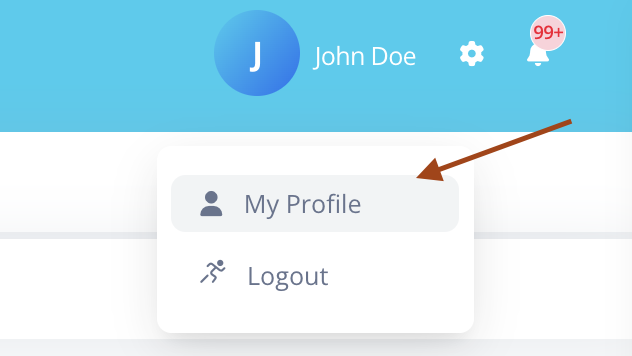
This will open a dropdown menu with the following options:
- My Profile
- Logout
Step 2: Open My Profile
Click on My Profile.
You will be redirected to your profile page.
Step 3: Locate the Change Password Section
Scroll to the bottom of the My Profile page.
You will find the Change Password section.
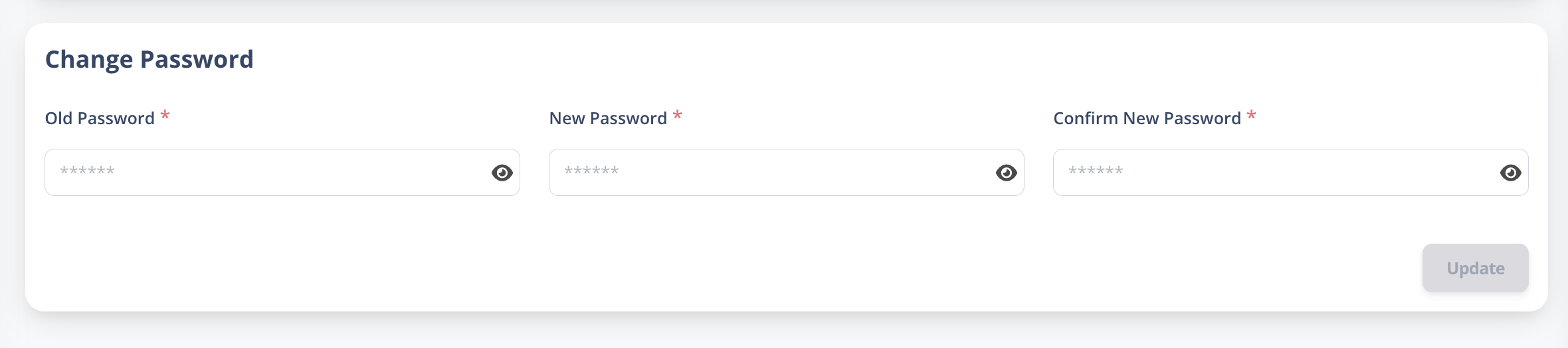
Enter current and new password
Step 4: Update Your Password
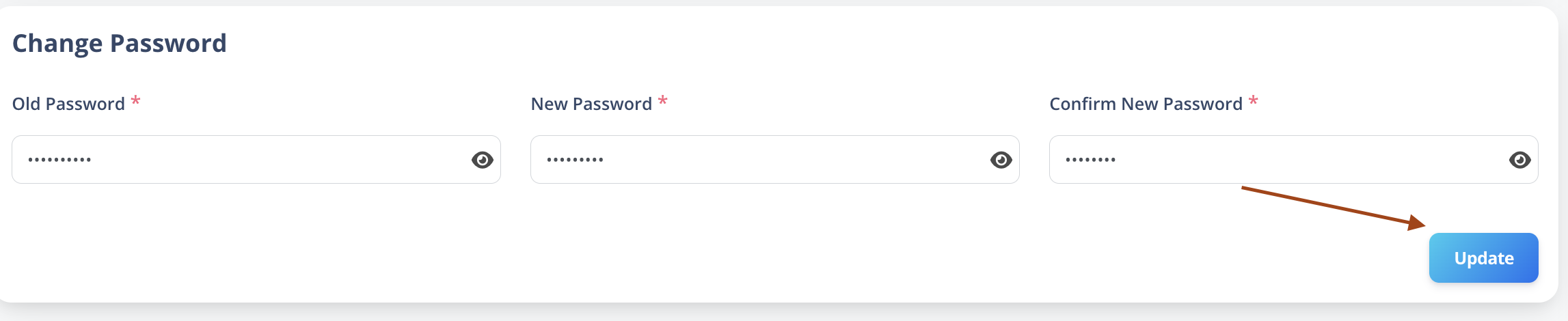
In the Change Password section:
- Enter the required fields (such as current password, new password, and confirm password).
- Click on the Update button.
What Happens Next?
If All Fields Are Valid
Your password will be successfully updated.
You can continue using the platform with your new password.
If There Is an Error
You may see validation errors if:
- The current password is incorrect
- The new password does not meet security requirements
- The new password and confirm password do not match
Correct the errors and click Update again.
Important Notes
- Always use a strong and secure password.
- For security reasons, do not share your password with anyone.
- If you forget your password, use the Reset Password option on the login page.