Reset Password
If you forget your password, you can easily reset it using the Reset Password option available on the login page.
Step 1: Open the Login Page
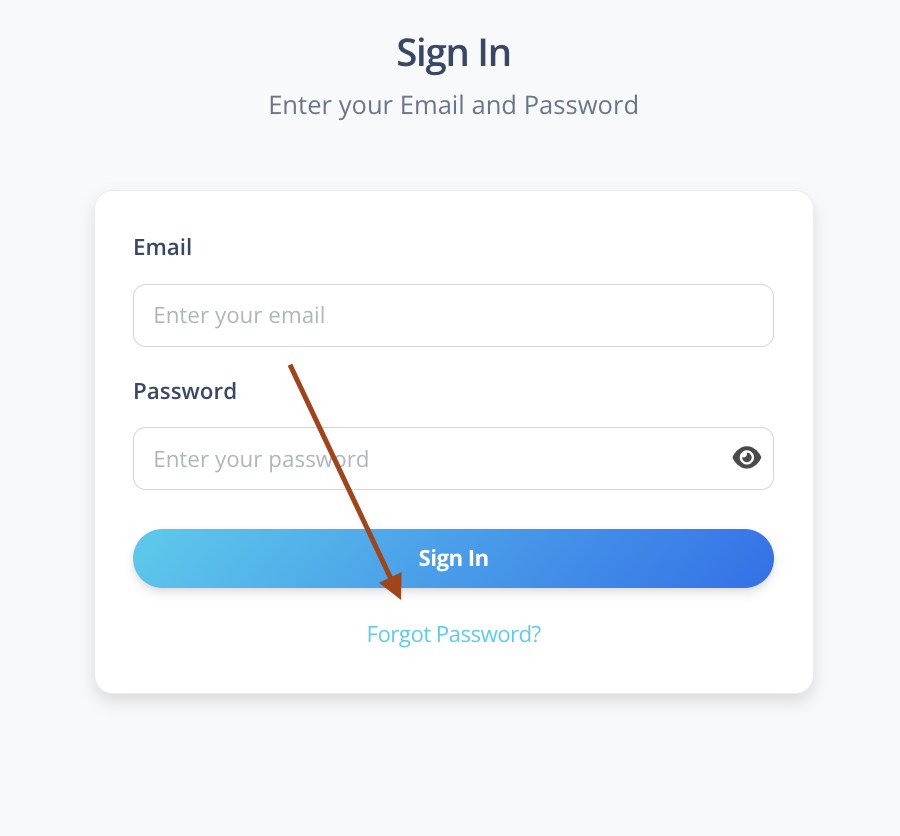
By default, when accessing the platform, you will land on the Login Page.
Click on the Forgot Password link below the login form.
Step 2: Enter Your Registered Email
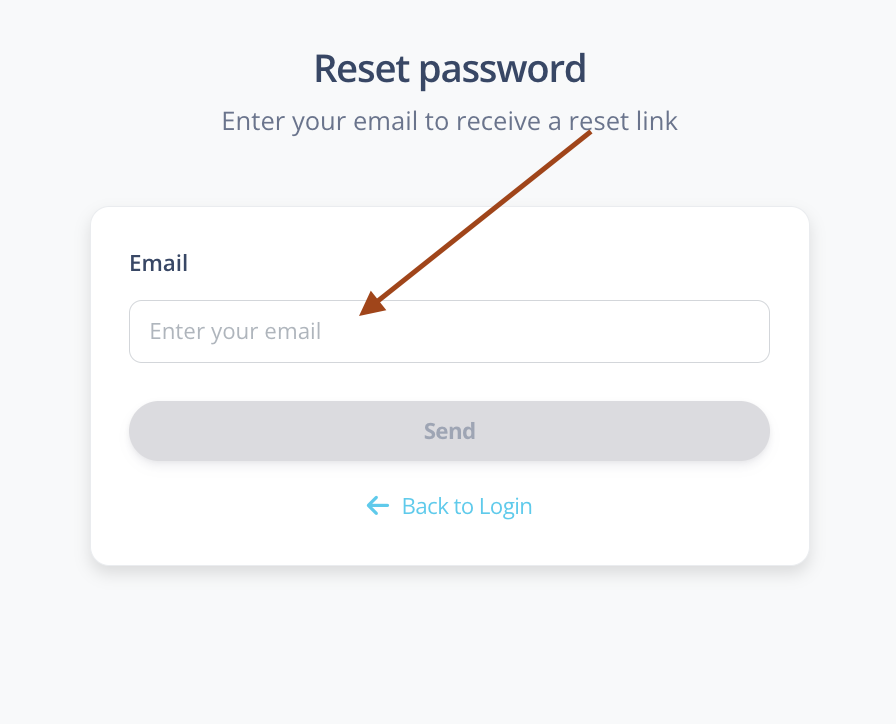
After clicking Reset Password, you will be redirected to the Reset Password Request Page.
On this page:
- Enter your registered email address
- Click on the Submit button
What Happens Next?
❌ If the Email Is Not Registered
You will see a toast notification:
No account found with this email address.
In this case, please verify your email address or contact your administrator.
✅ If the Email Is Registered
You will see a success toast notification:
An email with a reset password link was sent.
A password reset email will be sent to your registered email address.
Step 3: Open the Reset Email
Open the email you received.
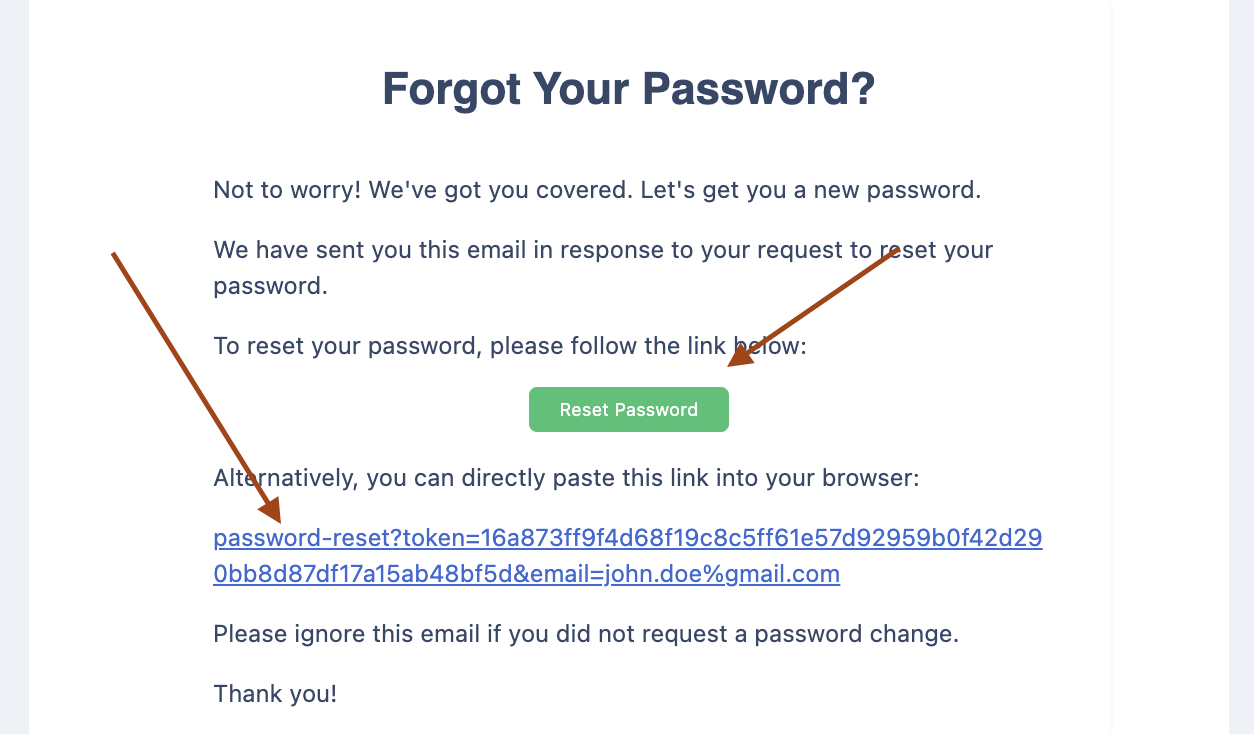
Inside the email, you will find:
- A Reset Password button
- A reset password link below the button
You can click either the button or the link.
Both will redirect you to the Create New Password page.
Step 4: Set a New Password
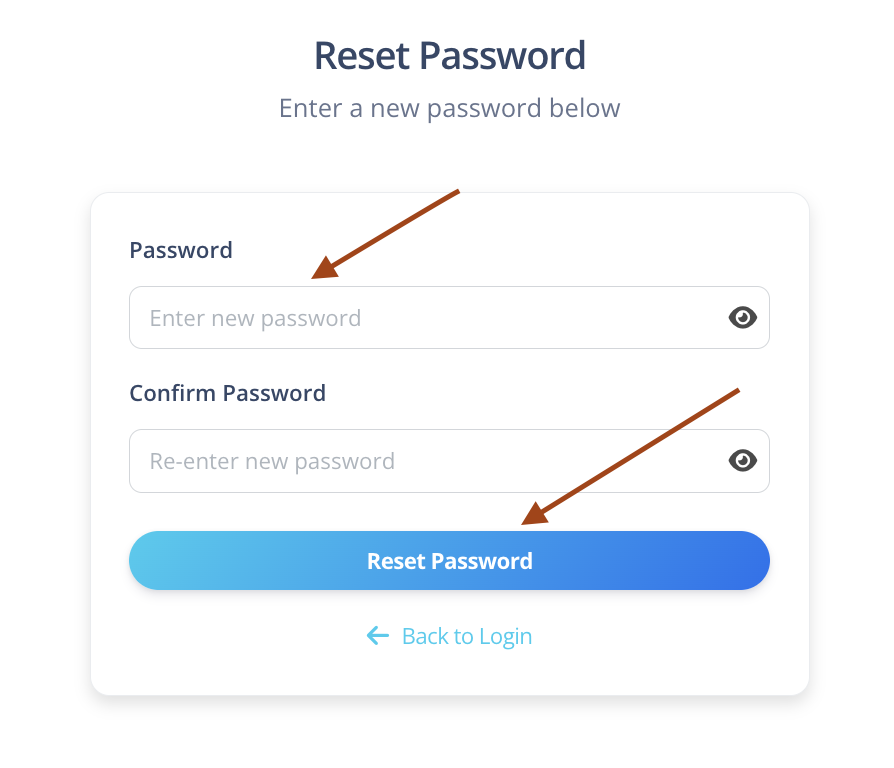
On the reset password page, you will see two fields:
- Password
- Confirm Password
Instructions
- Enter your new password
- Re-enter the same password in the confirm field
- Click on the Reset Password button
Final Step
If Both Passwords Match
You will be redirected to the Login Page.
You can now log in using your new password.
If Passwords Do Not Match
You will see a validation error asking you to ensure both passwords match.
Please correct the values and try again.
Important Notes
- The reset password link may expire after a certain period.
- If the link has expired, repeat the reset password process from the login page.
- Always use a strong and secure password.