Probation Policies
Probation Policies in VoxHRM define the probation duration, evaluation process, and extension rules for employees.
These policies help organizations standardize confirmation timelines and manage probation extensions efficiently.
Accessing Probation Policies
- Log in to VoxHRM.
- Navigate to Employees.
- Click Settings.
- Select Probation Policies
You will land on the Probation Policy Management Page.
Page Layout Overview
The page is divided into two main sections:
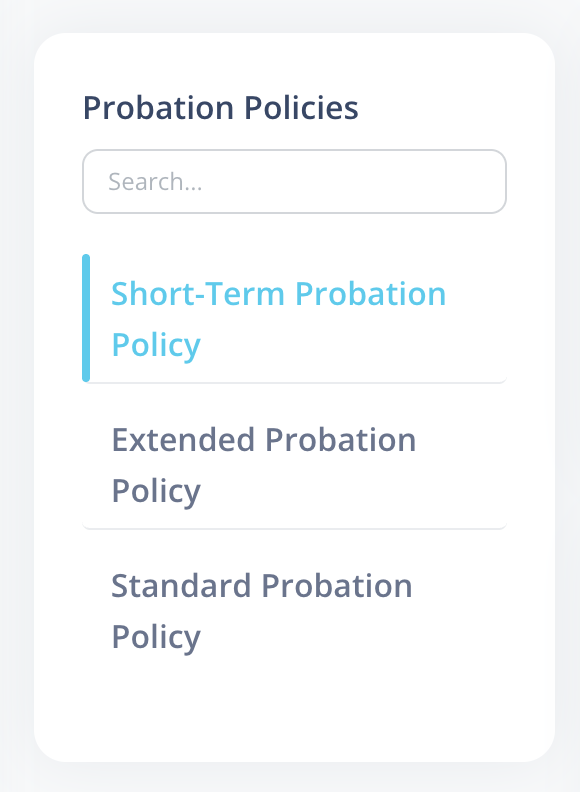
- Left Panel → List of Probation Policies
- Right Panel → Details of the selected policy
The left panel includes:
- A Search box (searches by probation policy name)
- List of configured probation policies
Left Panel – Policy List
The left side displays:
- Search bar (filters by name)
- List of probation policies
Clicking on a policy loads its details on the right panel.
Right Panel – Policy Details
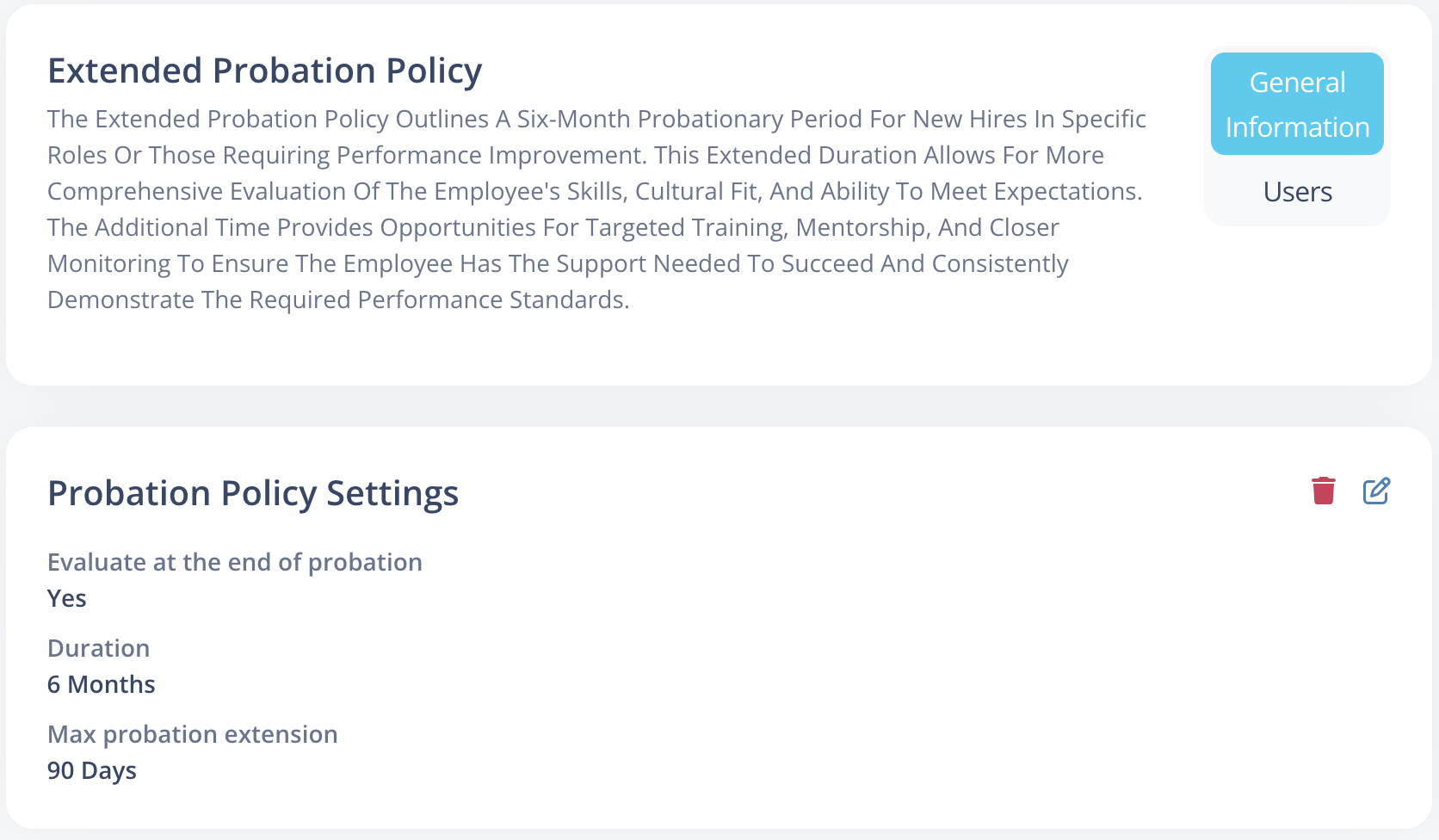
The details section is divided into two adjacent cards:
1️⃣ Name Card
This card contains:
- Probation Policy Name
- Description
- Two tabs on the right side:
- General Information
- Users
2️⃣ Details Card (Below Name Card)
This card contains all configuration settings such as:
- Duration
- Duration Type
- Extension Rules
- Evaluation Settings
Tabs Explained
General Information
Displays the configuration details of the probation policy.
Users
Displays a list of employees assigned to this probation policy.
Users cannot be assigned from this tab.
It is for viewing purposes only.
Creating a Probation Policy
Click the Add Probation Policy button (top-right of the details panel).
You will be able to configure the following:
1️⃣ Name
- Required field
- Must be unique
- Example:
6 Months Standard Probation
2️⃣ Description
- Optional explanation of the policy.
3️⃣ Duration
- Required numeric value.
- Defines probation length.
Example: 6
4️⃣ Duration Type
Defines the unit of duration:
- Days
- Weeks
- Months
Example:
- 6 Months
- 90 Days
5️⃣ Extension Limit (Days)
- Optional.
- Defines how many days probation can be extended per extension.
Example: 30
If not set:
- The probation cannot be extended.
- The employee will automatically move out of probation upon completion.
6️⃣ Probation Extension Limit (Number of Times)
- Optional.
- Defines how many times probation can be extended.
Example:
- 1 → Can be extended once
- 2 → Can be extended twice
If not set:
- No extensions are allowed.
7️⃣ Evaluate at End
- Boolean option.
- If enabled, the system automatically sends reminder emails to Admin/HR.
📩 Email Behavior
- Email is sent 3 days before probation end date.
- Allows HR/Admin to review performance and take action:
- Confirm employee
- Extend probation (if allowed)
- Take other necessary actions
If disabled:
- No automatic reminder email will be sent.
Editing a Probation Policy
Click the icon in the top-right corner.
You can update:
- Name
- Description
- Duration
- Extension settings
- Evaluation setting
Changes do not retroactively affect completed probation records.
Deleting a Probation Policy
Click the icon in the top-right corner.
Important Rule
A probation policy can only be deleted if:
- It is not assigned to any employee.
If assigned, deletion will not be allowed.
Example Scenario
Policy Configuration:
- Duration = 6 Months
- Extension Limit = 30 Days
- Probation Extension Limit = 1
- Evaluate at End = Enabled
System Behavior:
- Employee serves 6 months.
- 3 days before completion → HR/Admin receives email reminder.
- HR may extend probation once, up to 30 additional days.
- After extension limit is reached → No further extensions allowed.
Best Practices
- Keep probation durations standardized across roles.
- Always enable Evaluate at End to avoid missing confirmation timelines.
- Define extension limits clearly to prevent indefinite probation.
- Avoid modifying policies that are actively assigned unless necessary.