Leave Balances
Leave balances in VoxHRM define how many days of each leave type an employee currently has.
These balances can be managed individually for each employee, or updated in bulk for multiple employees.
Accessing Leave Balances
There are several ways to access leave balances:
- For a specific employee:
- Go to Employee Listing
- Find the employee and click the View (eye) icon
- Navigate to the Leaves tab
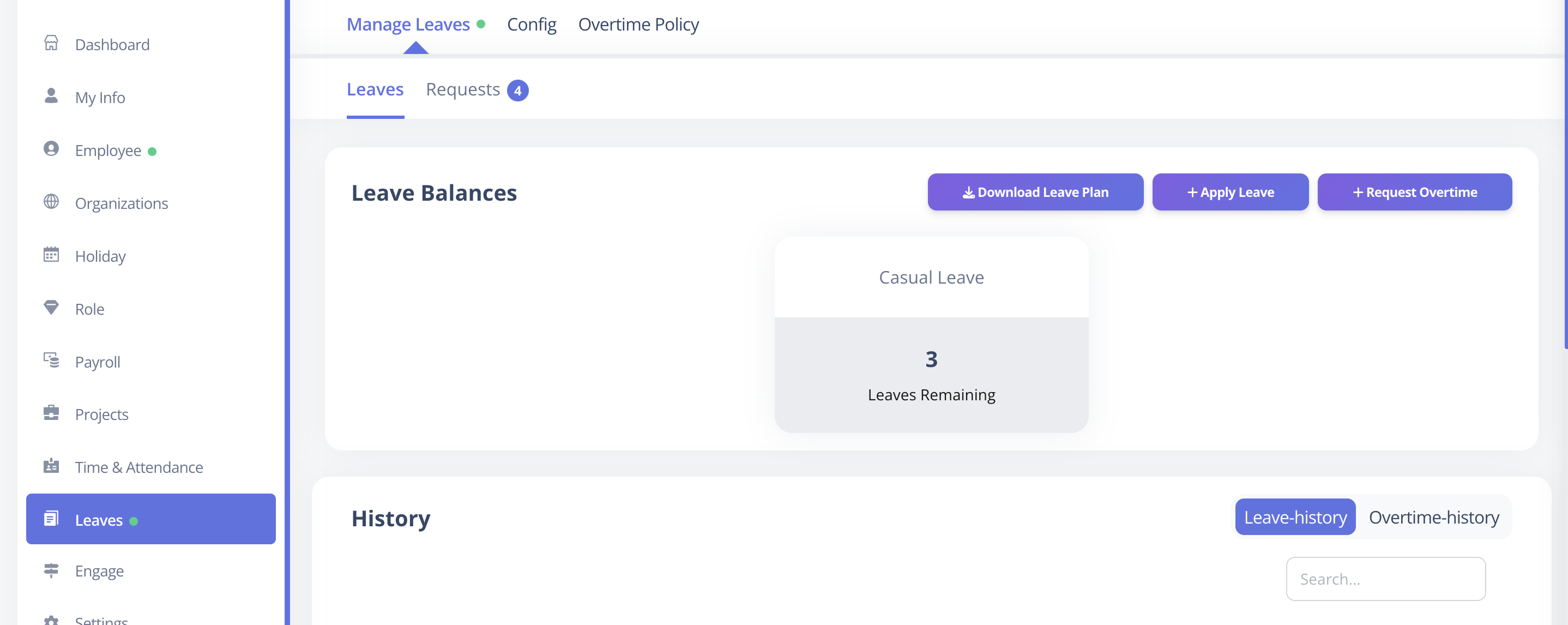
- For bulk updates:
- Go to Leave Balances menu
- Manage leave balances for multiple employees at once
Employees can view their own leave balances via:
- Leaves menu
- My Info → Leaves tab
- Dashboard Leave Balance Card
Attaching New Leave Types
To assign a new leave type to an employee:
- Click Add Leave Type in the employee’s Leaves tab
- A list of all unattached leave types is displayed, with their default leave balances
- Use checkboxes to select one or multiple leave types
- Click Add to assign leave types to the employee
These leave types are independent of any leave plan and can include special provisions.
Updating Current Leave Balance
The Leave Balance List shows:
| Column | Description |
|---|---|
| Leave Type | Type of leave assigned to the employee |
| Balance | Current leave balance (in days) |
| Next Allocation Date | When the next leave allocation is scheduled |
| Allocation Amount | Number of days to be added in the next allocation |
| Actions | Edit icon allows direct balance update |
How to update:
- Click the Edit ( ) icon in the Actions column
- Enter the new exact balance for the employee
- Click Save
This directly sets the employee’s leave balance. No incremental calculation is applied here.
Bulk Increment or Decrement
For adjusting leave balances of multiple employees:
- Go to Leave Balances
- Use the Leave Type dropdown (top right) to select the leave type to update
- Select employees using the checkboxes
- Click Update Leave Balance (top left)
- Fill out the form:
| Field | Description |
|---|---|
| Operation | Choose Increment or Decrement |
| Amount | Number of days to adjust |
| Reason | Optional explanation for the change |
| Notify Employees | Toggle to send notifications |
- Click Submit to apply changes
The system updates balances for all selected employees at once.
Viewing Leave Balances
Employees can view their balances in:
- Leaves menu
- My Info → Leaves
- Dashboard Leave Balance Card
To view a particular employee’s balances:
- Go to Employee Listing
- Search for the employee
- Open the Leaves tab on their profile
Viewing Leave History
Employees can view detailed leave balance changes from the Leaves → Leave Balance section.
How to Access
- Go to Leaves in the main menu
- In the Leave Balance section on the landing page
- Click on any Leave Type card
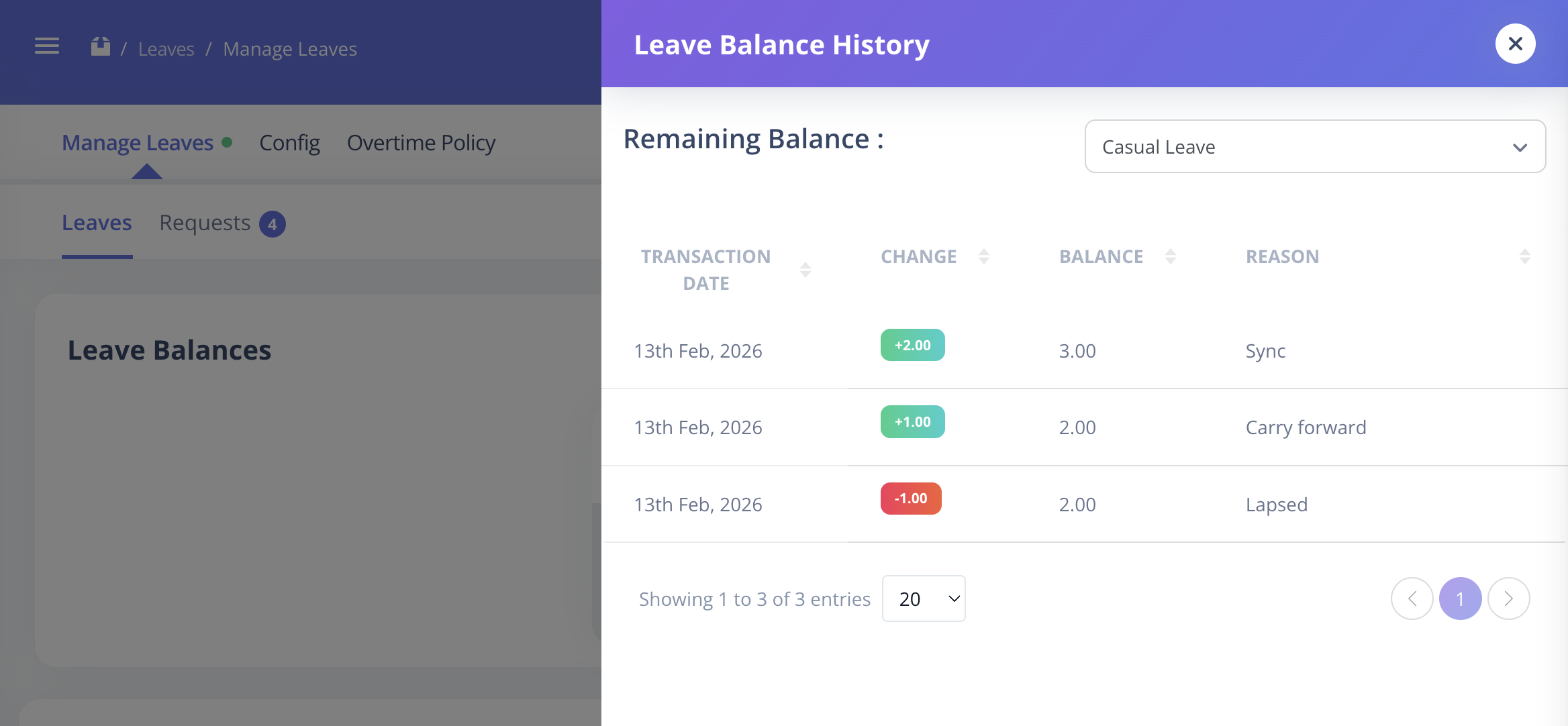
This opens the Leave Balance History page for that leave type
Leave History List
The page displays a chronological list of all leave balance changes:
| Column | Description |
|---|---|
| Transaction Date | Date when the balance change occurred |
| Change | Amount of change with a colored badge (Green = Increment, Red = Decrement) |
| Balance | Leave balance after the transaction |
| Reason | Optional note explaining the change |
Switching Between Leave Types
- A dropdown form at the top allows switching between different leave types
- Selecting All Types in the dropdown displays history for all leave types
- In this view, an additional column Leave Type (Name & Code) is shown after Balance
- This helps track which leave type each transaction belongs to
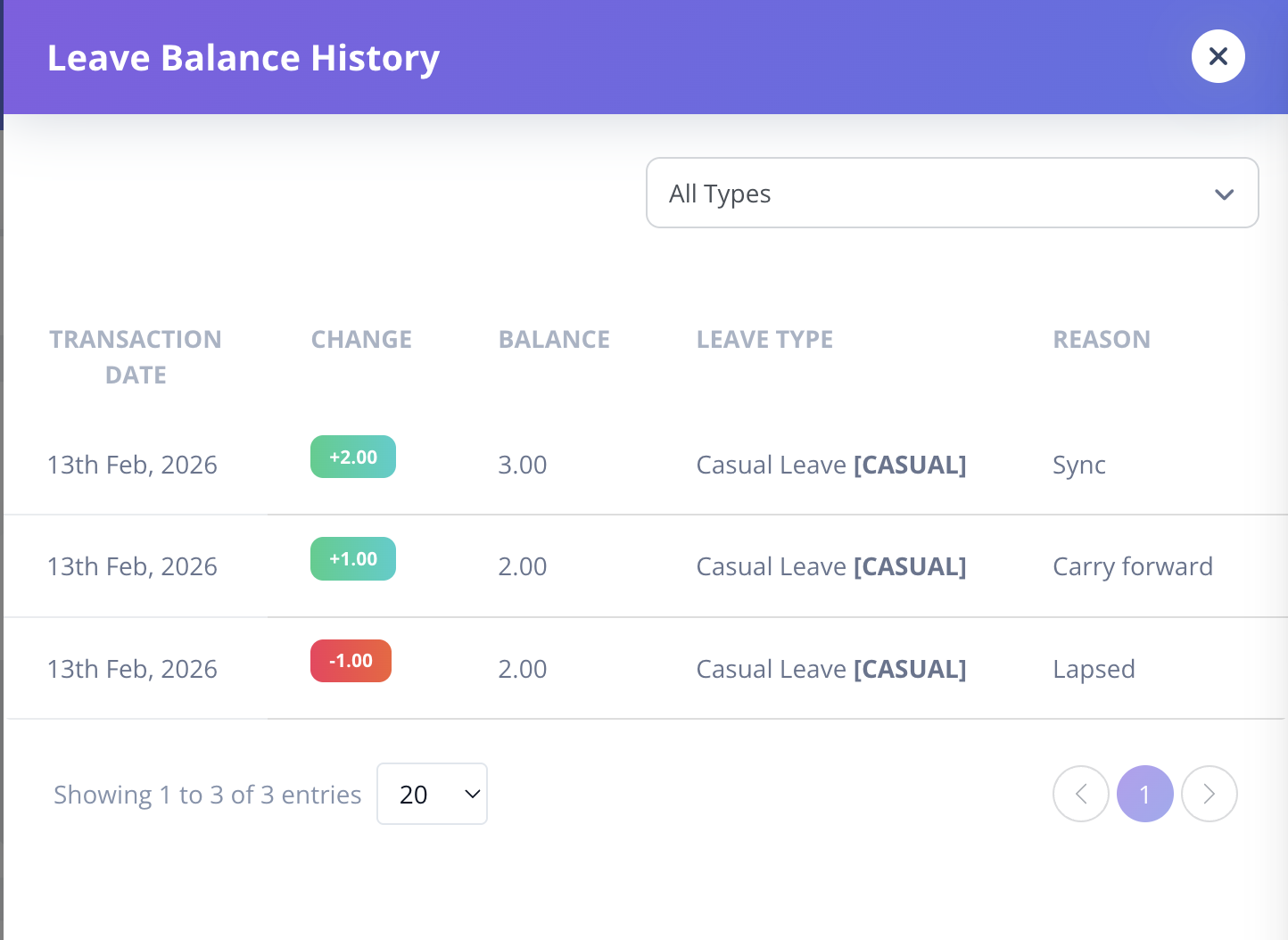
This view allows employees and admins to track exact changes to leave balances over time, including increments, decrements, and the reasons behind each change.