Approvals
The approval workflow in VoxHRM applies to both Leave Requests and Overtime Requests.
Approvals are handled based on the configured approval strategy in the respective Leave Type or Overtime configurations.
Where to Manage Approvals
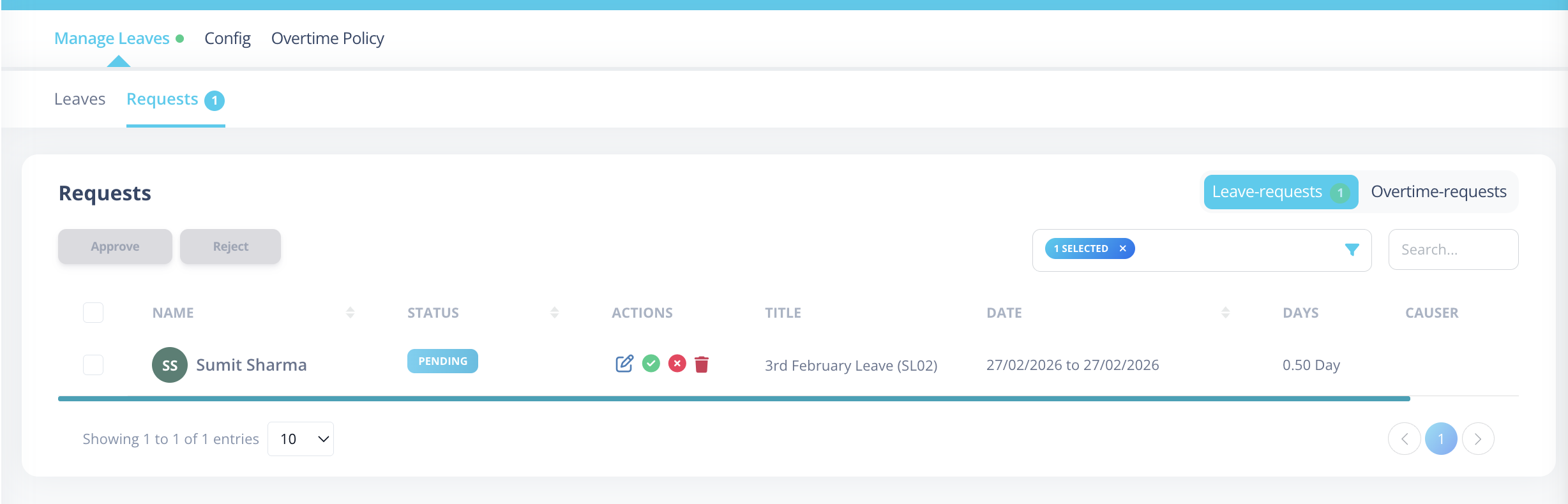
You can view and manage approvals from the Leave -> Requests.
There is a navigation pill on the top-right to switch between:
- Leave Requests
- Overtime Requests
How Approval Flow Works
1️⃣ Request Submission
- User submits a leave or overtime request.
- The user is notified that the request was submitted successfully.
- All users defined in the Approval Chain are notified that approval is required.
2️⃣ Approval Strategy Handling
Approval behavior depends on the configured Approval Strategy:
- all → All assigned approvers must approve individually.
- level → Approval required from a specific level or role.
- count → A defined number of approvals is required.
Approval Chain Can Include
- Reporting Managers (assigned individually)
- Managers (by role)
- Department Head
After each approval (before final approval):
- Remaining approvers are notified to take action.
3️⃣ Admin / HR Override
If a user with Admin or HR role approves the request:
- The request is immediately marked as Approved.
- Remaining approval levels are skipped.
- The employee is notified instantly.
4️⃣ Final Approval
Once final approval conditions are satisfied:
- Status changes to Approved.
- The employee receives notification.
If rejected at any stage:
- Status changes to Rejected.
- The employee is notified.
- Leave balance deducted for the particular leaves gets credited back to the employee.
Managing Requests
The approvals table includes:
Filters
| Filter | Description |
|---|---|
| Status | Filter by approval status (Pending, Approved, Rejected, etc.) |
| Search | Search by request title or employee name |
Bulk Approval / Rejection
Approvers can perform bulk actions for requests with similar statuses.
How It Works
-
Use the checkboxes to select multiple requests.
-
Click Approve or Reject button at the top.
-
A confirmation modal appears showing:
- Employee names
- Total leave/overtime days per request
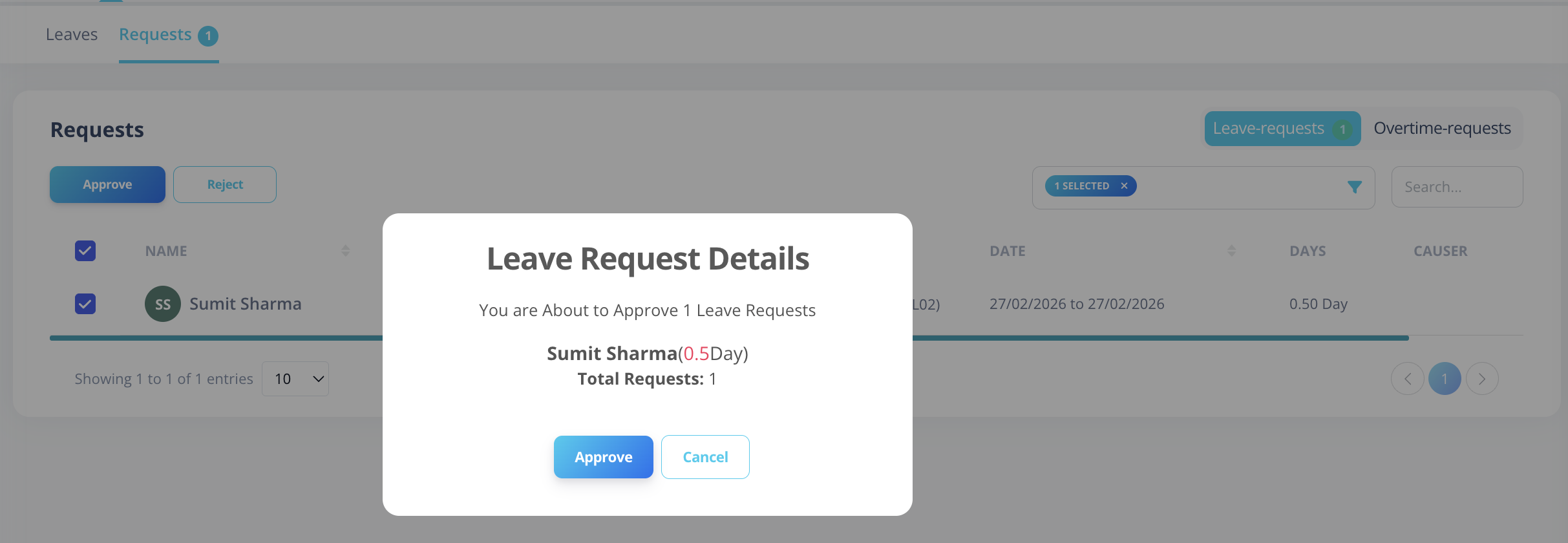
- Confirm the action.
- Status updates for all selected requests.
Bulk Action Rules
- Only requests with compatible statuses can be bulk processed.
- You can:
- Approve multiple Pending requests.
- Reject multiple Pending requests.
- Reject Approved requests (if allowed by policy).
- Re-approve previously rejected requests (if permitted).
All affected employees receive notification after bulk action.
Status Lifecycle
Typical approval statuses:
- Pending
- Partially Approved
- Approved
- Rejected
Important Notes
- Approval behavior is determined by Leave Type or Overtime configuration.
- Admin/HR approval overrides approval chain.
- Notifications are triggered at:
- Submission
- Each intermediate approval
- Final approval
- Rejection
- Bulk action