Leaves
The Leaves section allows you to manage:
- Employee leave balances
- Leave request history
- Leave type allocation
- Leave balance adjustments
This module ensures complete tracking of employee leave lifecycle.
Prerequisites
Before using the Leaves module, ensure the following are configured:
1️⃣ Leave Types Must Be Created
Admin must configure:
- Leave Types (e.g., Casual Leave, Sick Leave, Earned Leave)
- Allocation rules
- Accumulation rules
Leave → Config → Leave Types
Without leave types:
- Leave balances cannot be assigned.
- Employees cannot apply for leave.
2️⃣ Leave Plan Must Be Assigned
Each employee must have a Leave Plan assigned in:
Employee → Job Details → Leave Plan
Without leave plan:
- Leave balances will not appear.
- Leave requests may fail.
Tab Structure
The Leaves section contains two tabs:
- Leave Balances
- Leave History
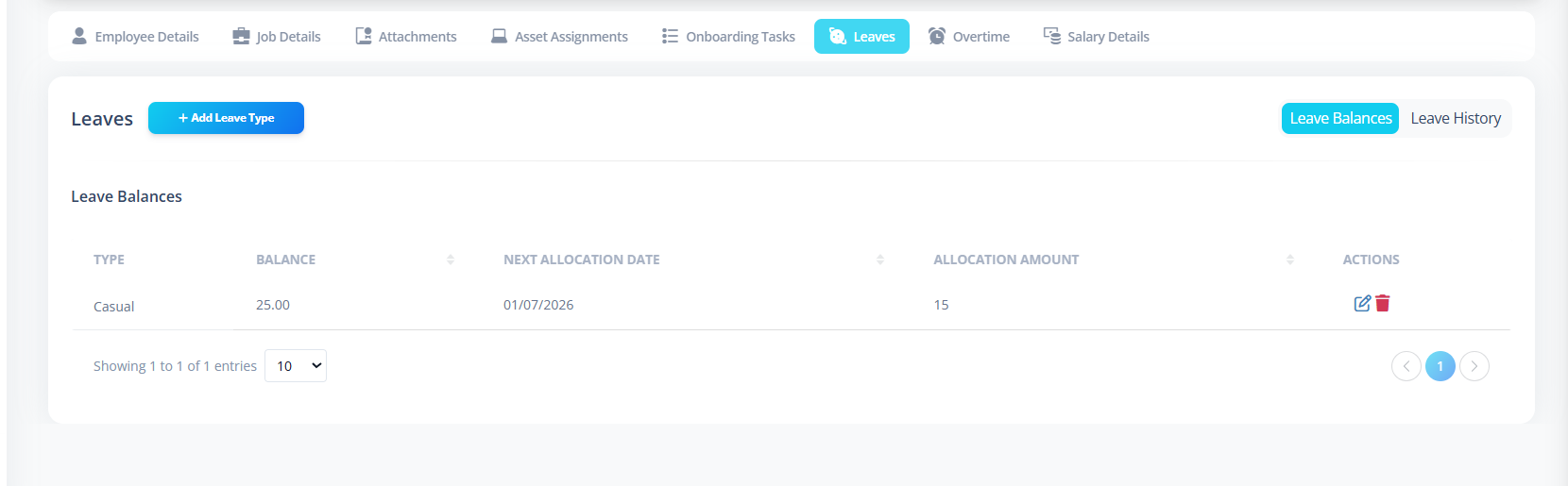
Leave Balances
This tab shows all leave types assigned to the employee.
Clicking Leave Type Name
Clicking on a leave type name:
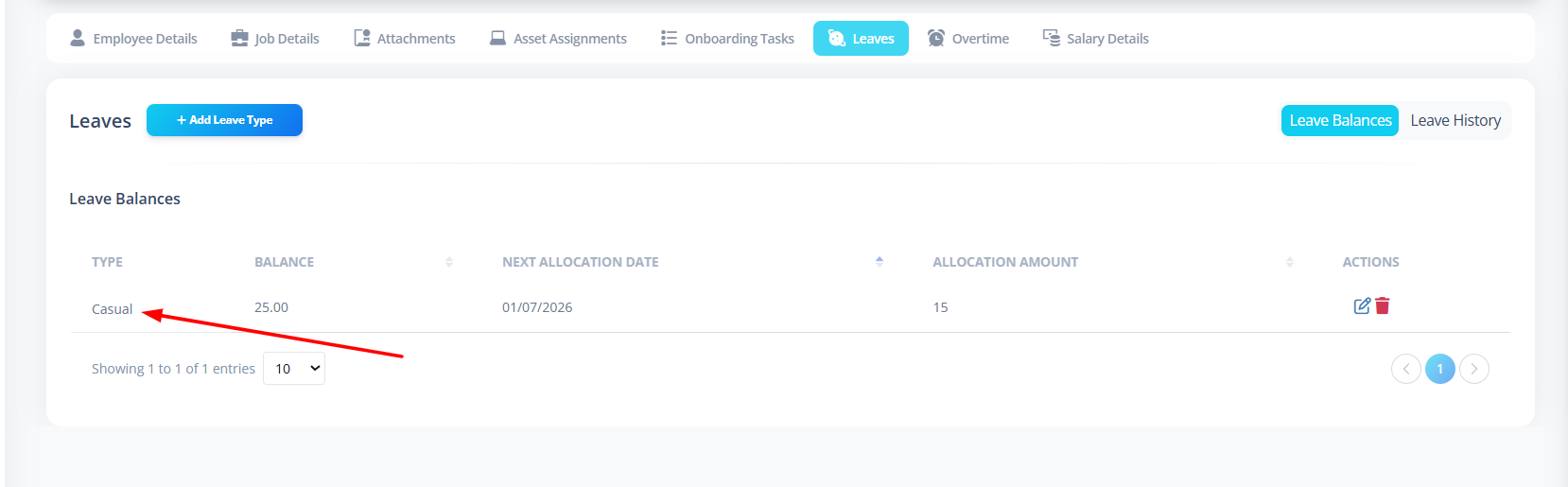
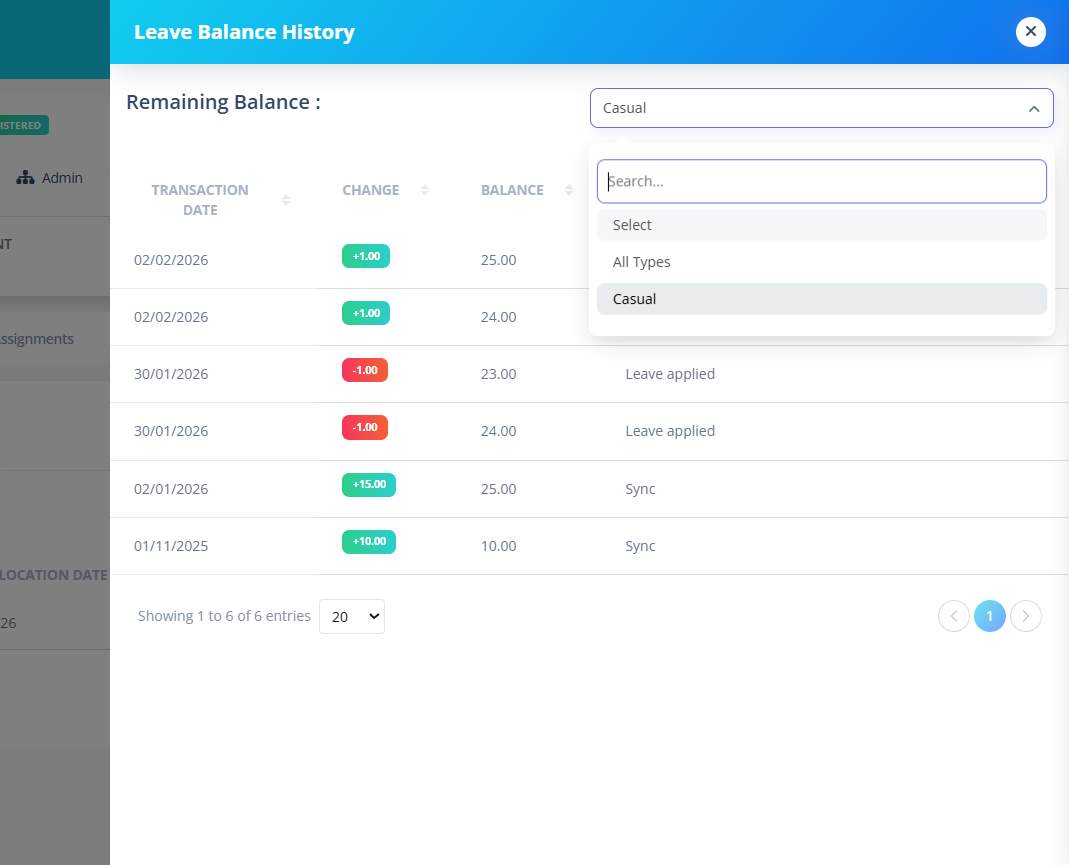
Shows Leave Balance History
Edit Leave Balance
- Edit icon appears.
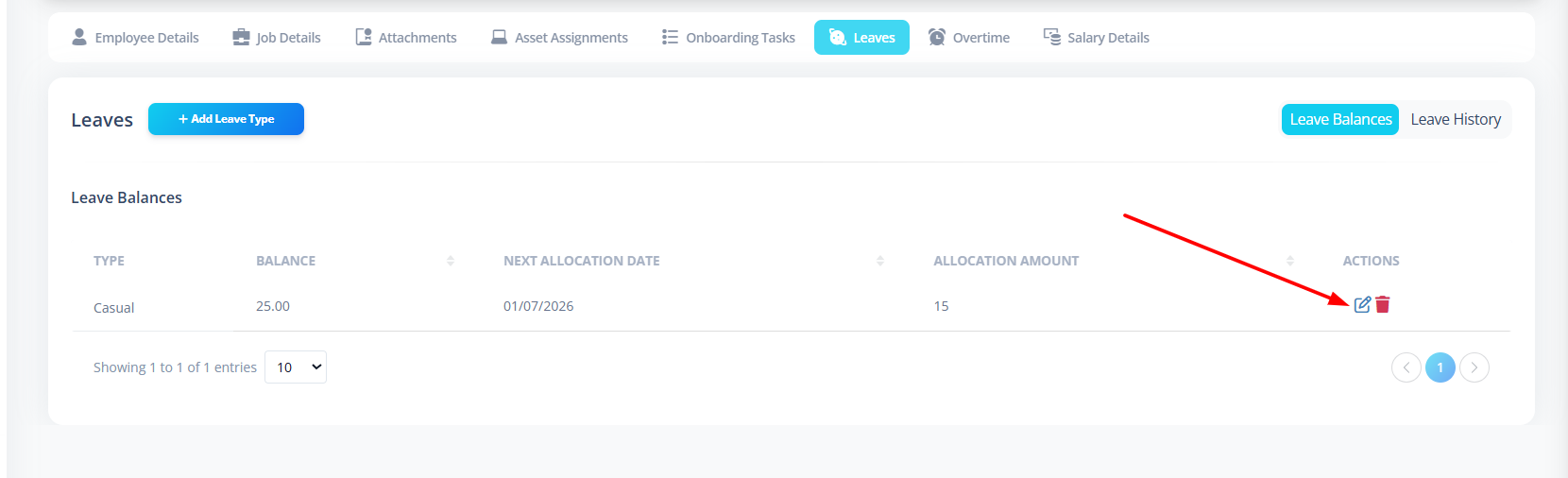
- Opens Add/Edit Leave Balance form.
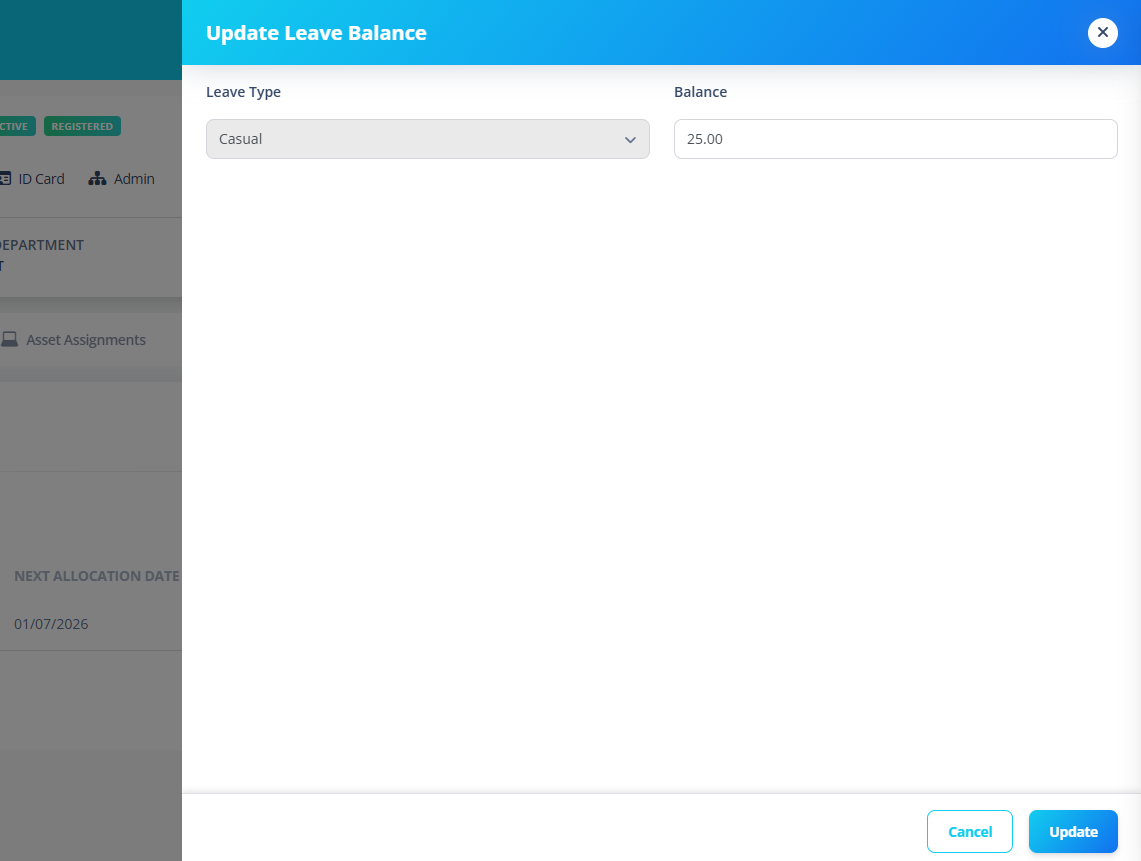
- Allows manual adjustment of leave balance.
Delete Leave Balance
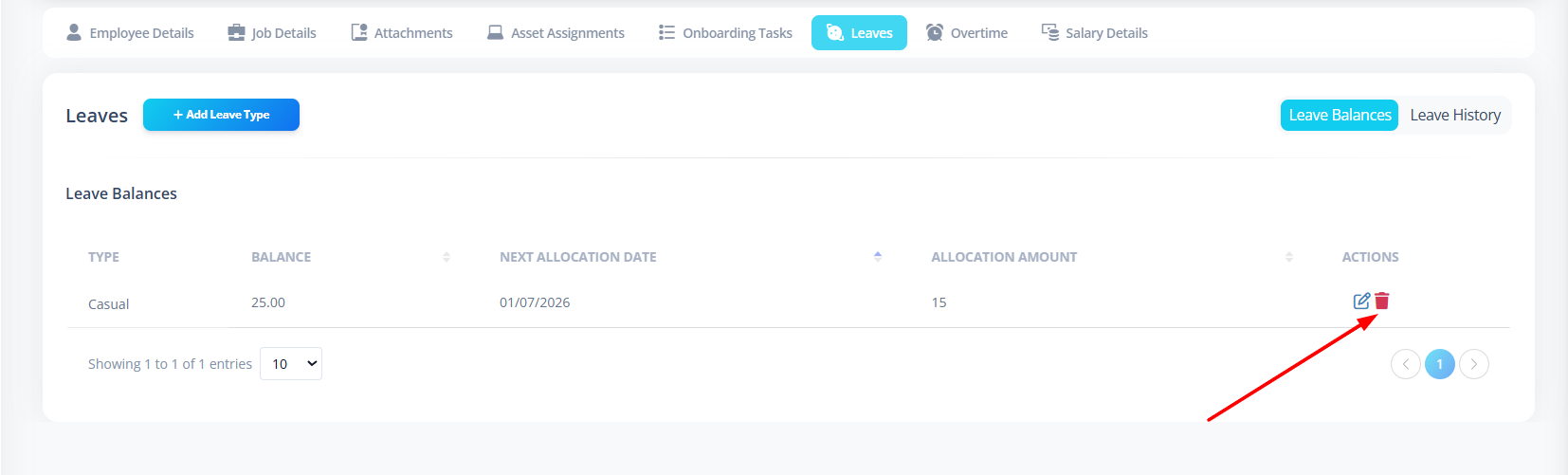
Allocation Behavior
If leave type has allocation enabled:
- Next allocation date is shown.
- Allocation amount is displayed.
- System automatically credits based on allocation cycle.
If allocation not enabled:
- "N/A" appears.
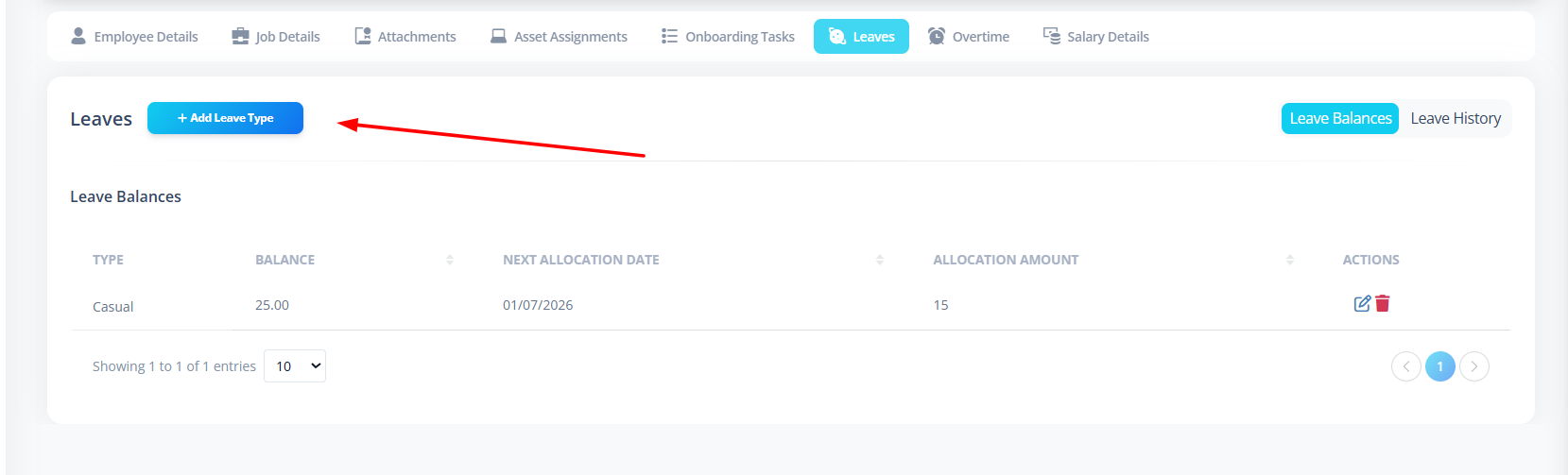
Add Leave Type to Employee
Click:
Add Leave Type
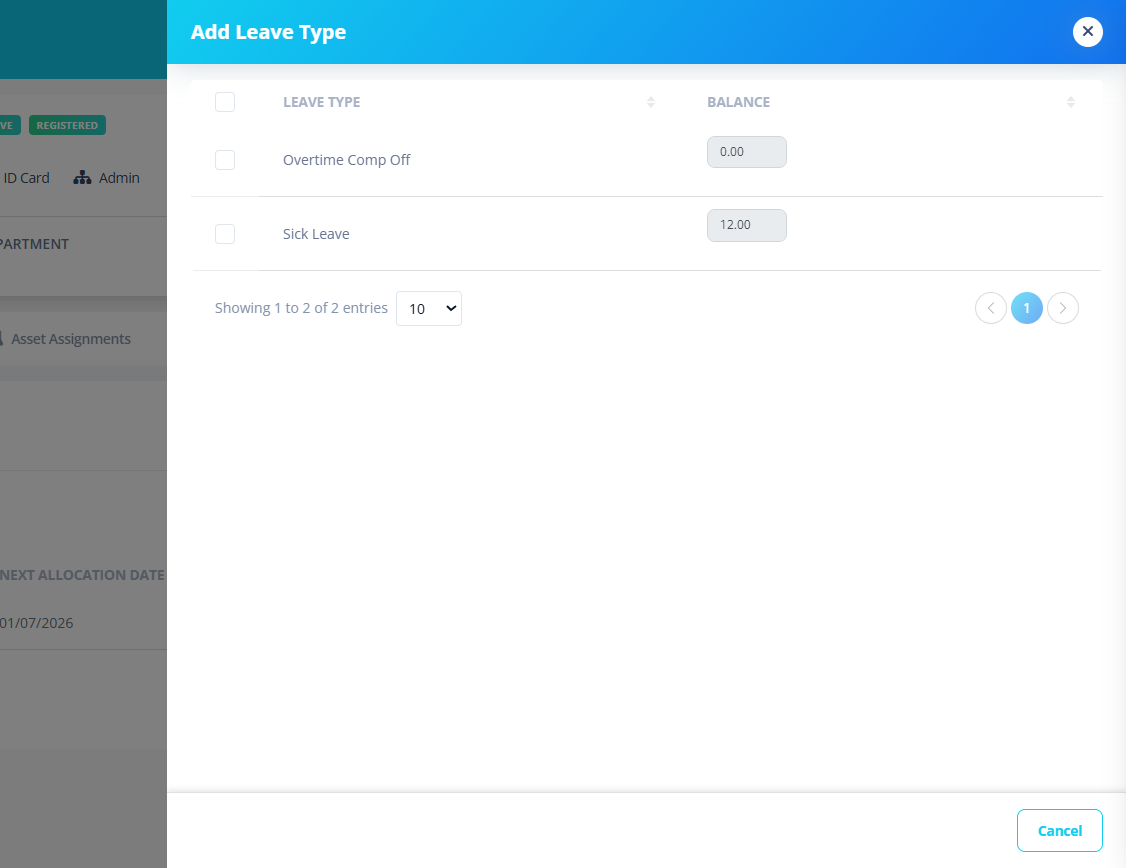
This opens a side panel listing:
- Unassigned leave types
- Default balance (if configured)
How It Works
- Select leave type(s) using checkbox.
- Enter balance amount.
- Click Add.
The system will:
- Create leave balance record
- Initialize with provided balance
- Start allocation tracking (if enabled)
Bulk Add Behavior
- Multiple leave types can be selected.
- Each selected type requires balance input.
- Disabled balance input if not selected.
Leave History
This tab shows all leave requests made by the employee.
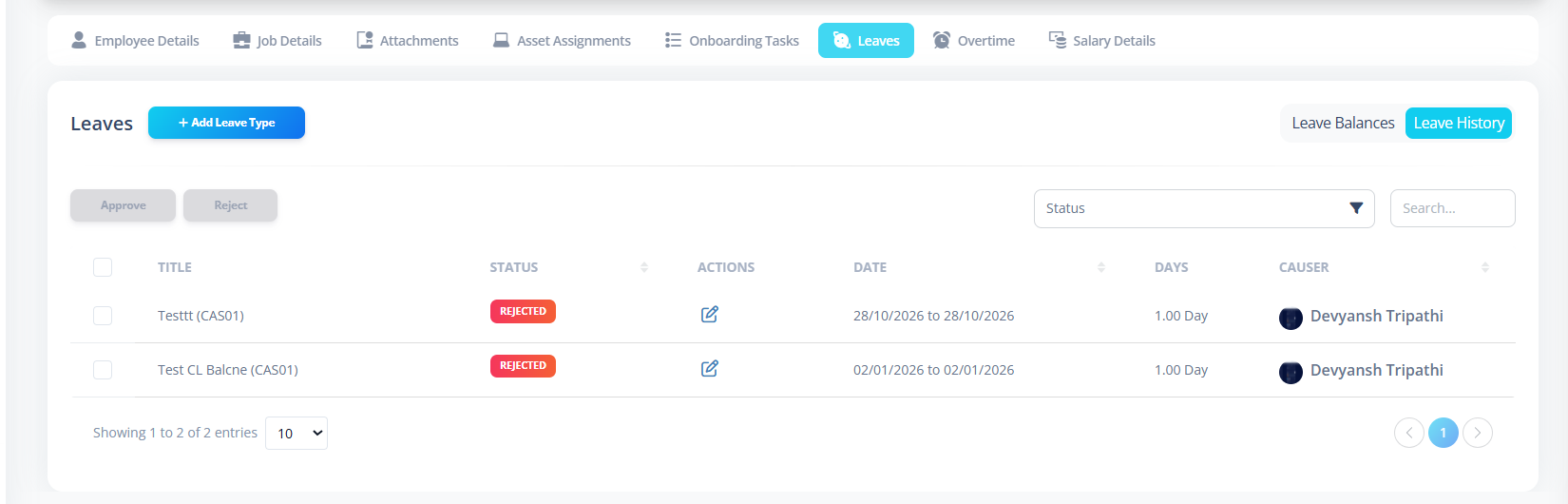
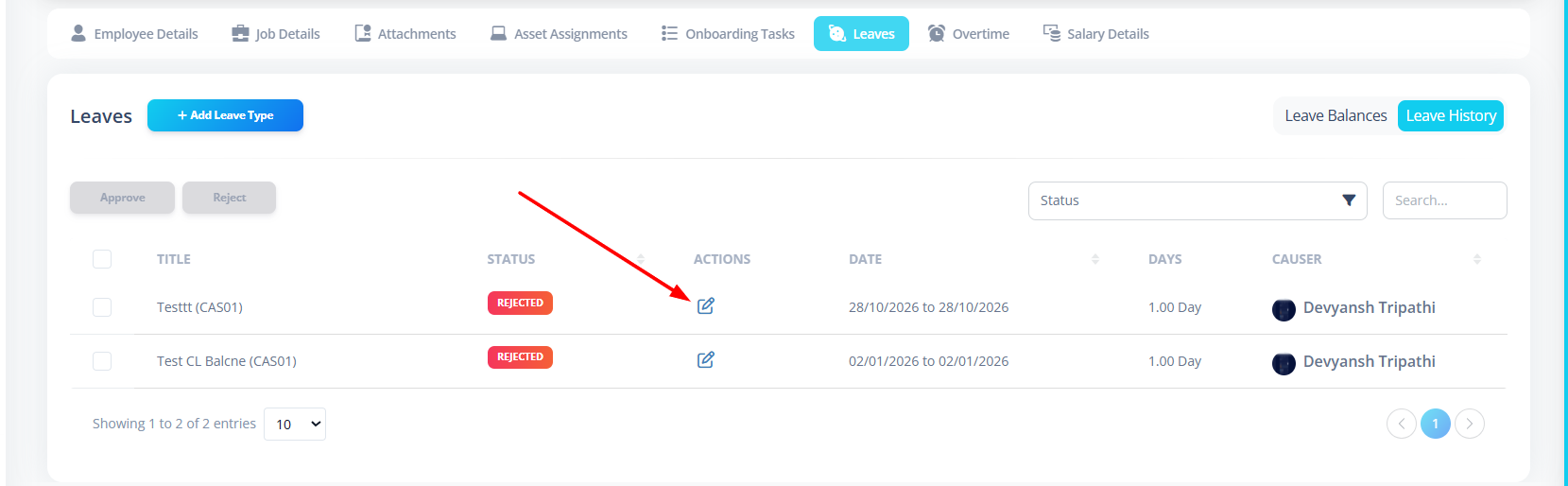
View Leave Details
Click:
- Title
- Edit icon
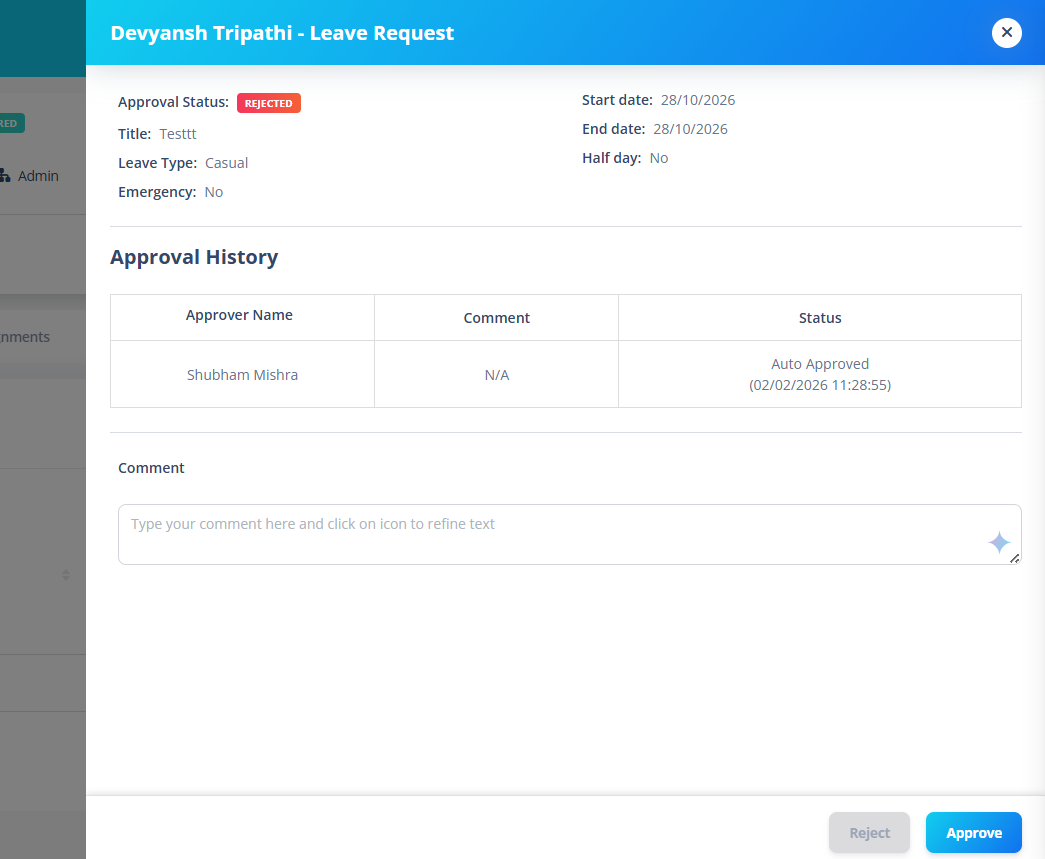
Opens leave action panel showing:
- Leave dates
- Reason
- Approval status
- Leave type
- Leave status
Delete Leave Request
Allowed only if:
- User has delete permission
- Status = Pending
- User is HR/Admin OR leave owner
Once deleted:
- Leave balance recalculates
- Approval counts update
- Table refreshes
First-Time Setup Guide
For a new system:
- Create Leave Types.
- Configure allocation rules.
- Create Leave Plan.
- Add Leave Types inside Leave Plan.
- Assign Leave Plan to employees.
Common Issues
| Issue | Cause |
|---|---|
| No leave balances | Leave types not assigned |
| Add Leave Type empty | No unassigned leave types |
| Cannot delete leave | Status not pending |
| Allocation not happening | Allocation rule not configured |
| Next allocation date missing | Allocation disabled |
Summary
The Leaves module provides:
- Structured leave balance management
- Automated allocation system
- Leave history tracking
- Approval workflow
- Permission-based controls
- Real-time updates
It ensures full transparency and compliance in leave management.