Attachments
The Attachments tab allows you to upload and manage employee documents inside structured document folders.
This section ensures:
- Secure document storage
- Organized document categorization
- Controlled upload permissions
- Easy download & deletion
- Audit-ready employee documentation
Prerequisites
Before using the Attachments tab, ensure the following setup is completed:
1️⃣ Document Folders Must Be Created
An administrator must first create Document Folders from:
Organization → Document → Employee Document
Each folder defines:
- Folder name
- Description
- Whether multiple documents are allowed
- Role-based permissions (Add, View, Delete)
If no document folders exist:
- The Attachments tab will not show upload sections.
2️⃣ Folder Permissions Must Be Configured
Each folder has role-based permissions.
Permissions include:
- Add
- View
- Delete
If a user does not have permission:
- Upload button will not appear
- Download option may not appear
- Delete option may not appear
Folder Overview
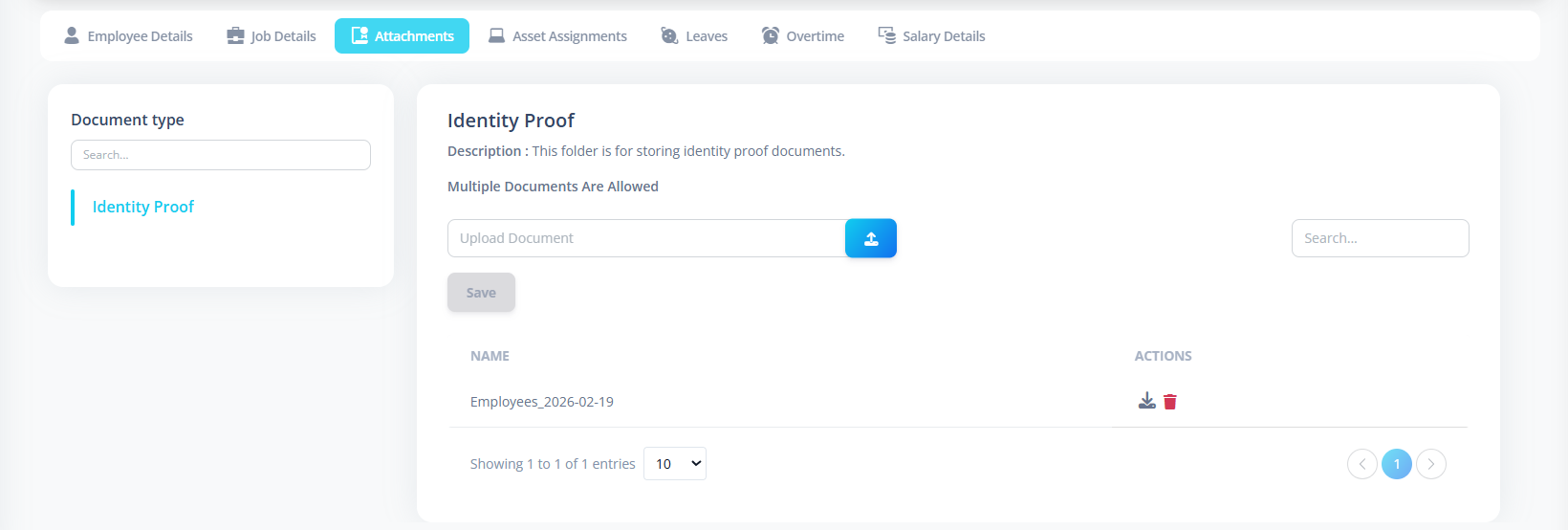
Each attachment section represents a Document Folder.
For each folder, the system displays:
- Folder Name
- Description
- Whether multiple documents are allowed
Example:
- "KYC Documents"
- "Employment Contracts"
- "Identity Proofs"
Uploading Documents
Allowed File Types
The system supports:
.jpeg.jpg.png.pdf
File Size Limit
Maximum file size: 10 MB per file
If file exceeds size:
- Upload will be rejected.
Multiple vs Single Upload
Each folder defines whether:
Multiple Documents Allowed
- User can upload multiple files.
- All files will appear in list.
Multiple Documents Not Allowed
- Only one file can exist.
- Upload button disables after one file is uploaded.
Upload Process
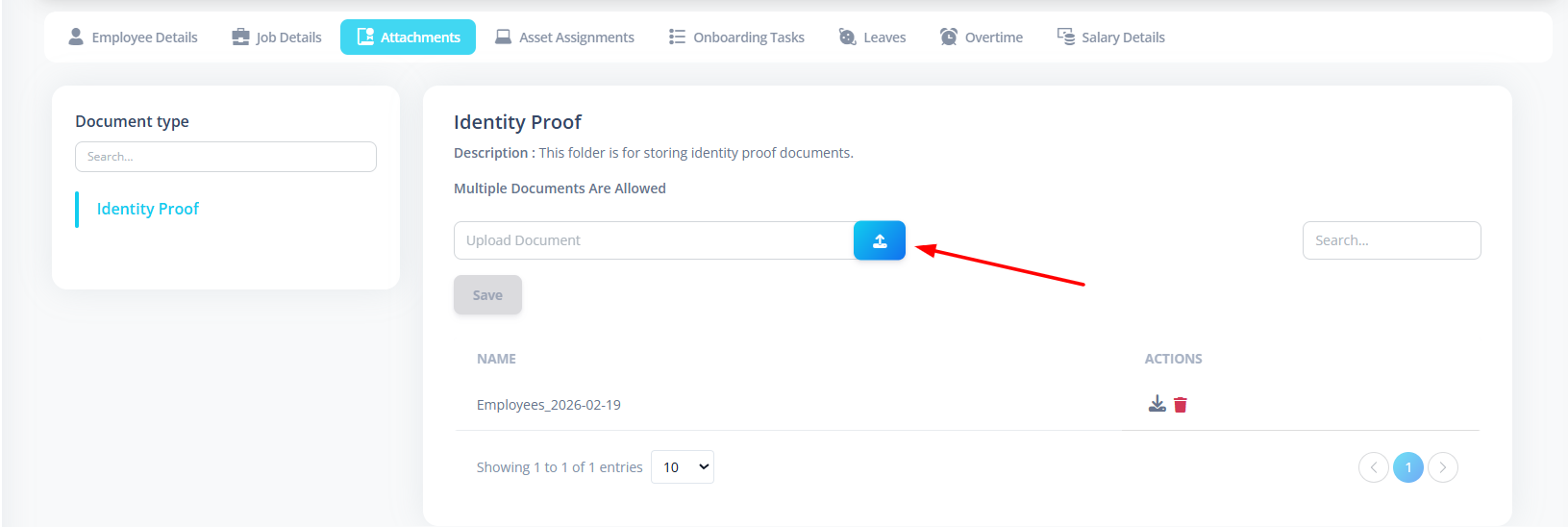
- Click Upload button
- Select file(s)
- Click Save
- File is uploaded and listed in table
Downloading Documents
If user has View permission:
- Download icon appears.
- Clicking it downloads the file.
Deleting Documents
If user has Delete permission:
- Trash icon appears.
- Confirmation dialog appears before deletion.
First-Time Setup Guide
For new system setup:
- Create Document Folders
- Define folder description
- Configure "Allow Multiple Documents"
- Assign permissions to roles
- Then open Employee → Attachments tab
Common Issues & Solutions
| Issue | Possible Cause |
|---|---|
| Upload button not visible | No Add permission |
| Cannot upload second file | Folder does not allow multiple documents |
| File rejected | File size exceeds 10MB |
| No documents visible | Folder not configured |
| Download icon missing | No View permission |
| Delete icon missing | No Delete permission |
Best Practices
- Create separate folders for:
- Identity Proof
- Offer Letter
- Salary Slips
- Contracts
- Certificates
- Restrict delete permission for sensitive documents.
- Enable multiple uploads only when necessary.
Summary
The Attachments tab provides:
- Structured document organization
- Role-based access control
- Secure file storage
- Controlled upload limitations
It ensures employee documentation is properly maintained and securely managed.