Project Check-In Flow
The Check-In Bar appears on the Dashboard.
It allows users to:
- Select a Project
- Select a Task
- Start tracking work
This integrates with attendance tracking.
Visibility Conditions
The check-in bar is visible only if:
- Project Management module is enabled
- It is included in the subscription plan
Flexible Check-In Mode
If Project Management is not enabled in the subscription plan:
- Users can still check in and track attendance.
- Instead of selecting from project and task dropdowns, users can manually enter the Project name and Task name.
This ensures attendance tracking remains available even without structured project management.


Initial Check-In Flow
-
User logs in and lands on Dashboard.
-
The Check-In button is disabled.
-
Two dropdowns are visible:
- Projects
- Tasks
-
User selects a Project.
-
User selects a Task under that project.
-
The Check-In button becomes enabled.
-
Click Check-In to start working.
Attendance is created for that day.

Creating a New Task During Check-In
If the required task does not exist:
- Click the Add Task button (right side of task dropdown).
- Enter task name.
- Click the ✔ icon to confirm.
- Task is created under selected project.
- Proceed with Check-In.

Resume Existing Task
If a task is already active:
- A Resume button appears beside it.
- Clicking Resume continues work on that task.
Switching Tasks
If already checked in and working on a task:
-
Select another task.
-
Click Resume.
-
A confirmation modal appears:
Switching tasks will save current progress and resume the new task.
-
Click Confirm.
-
System:
- Saves time spent on previous task
- Starts tracking time for new task
Pausing Work
If you need to take a break:
- Click Pause.
- Time tracking stops.
- Resume later from the same task.
Viewing Worked Tasks in Attendance
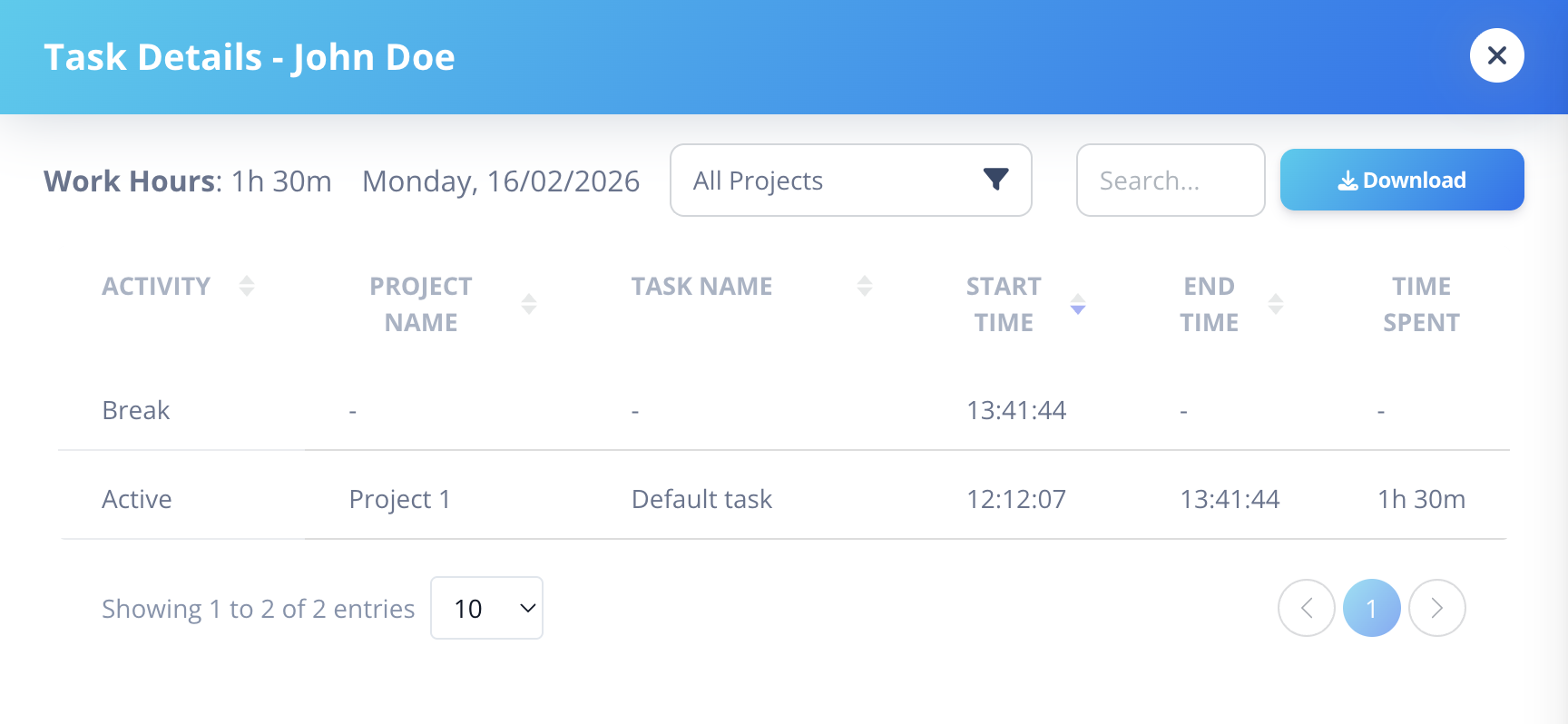
All tasks worked on during the day are visible directly in the Attendance listing page.
Each attendance entry displays:
- Project name
- Task name
- Time spent
Note - User can also use the project dropdown on top the of the page to view tasks of a particular project only.
Important Rules
- Only assigned tasks or unassigned tasks are visible.
- Time is tracked collectively for each task.
- Switching tasks automatically saves progress.
- Check-In must be active to track time.
How It Relates to Attendance
- First Check-In creates attendance for the day.
- Task tracking works within active attendance.
- Switching tasks updates time logs accordingly.