List Attendance
The Attendance landing page provides a complete overview of employee attendance through summary cards and detailed daily logs.
Top Summary Bar
At the top of the page, a summary bar displays key information for the selected user.
- On the left side, the Total Time for today’s period is shown.
- On the right side, a User Dropdown (if applicable) allows switching between employees.
If the logged-in user does not have reporting members, the User Dropdown will not be visible.
User Dropdown Behavior
The dropdown allows users to switch between employees and view their attendance data.
-
Reporting Manager (Non Admin/HR)
- Can view attendance only for employees who report to them.
-
Admin/HR
- Can view attendance for all employees across organizations and departments.
-
The dropdown includes a search field to quickly locate employees.

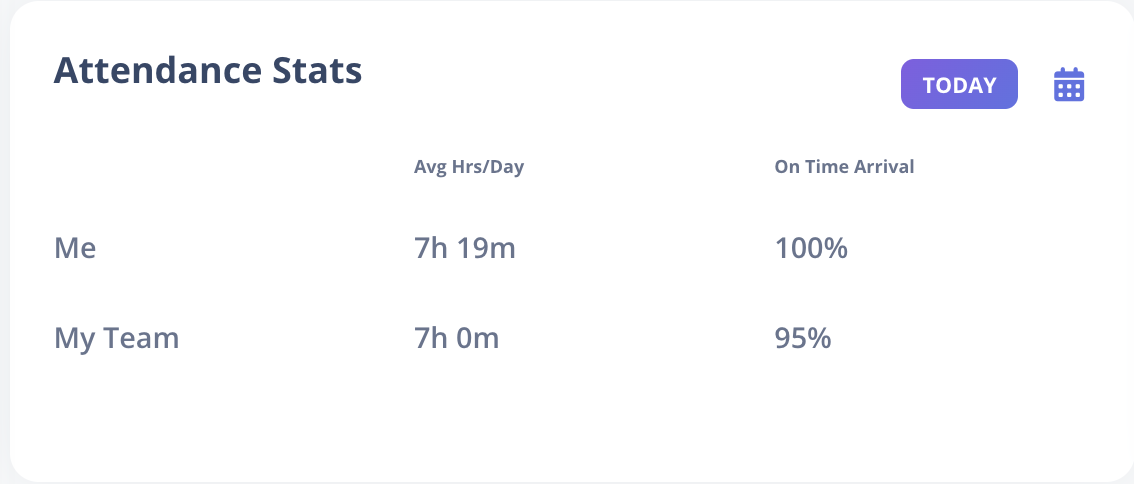
1. Attendance Stats Card
This card provides a high-level attendance summary.
It contains two sections:
Me
Represents the currently selected user.
- Average Hours per Day (hours & minutes)
- On-Time Arrival Percentage
Team
Represents employees from the logged-in user's department.
- Average Hours per Day
- On-Time Arrival Percentage
Team statistics are based on the logged-in user's department, not the selected user’s department.
2. Timings Card
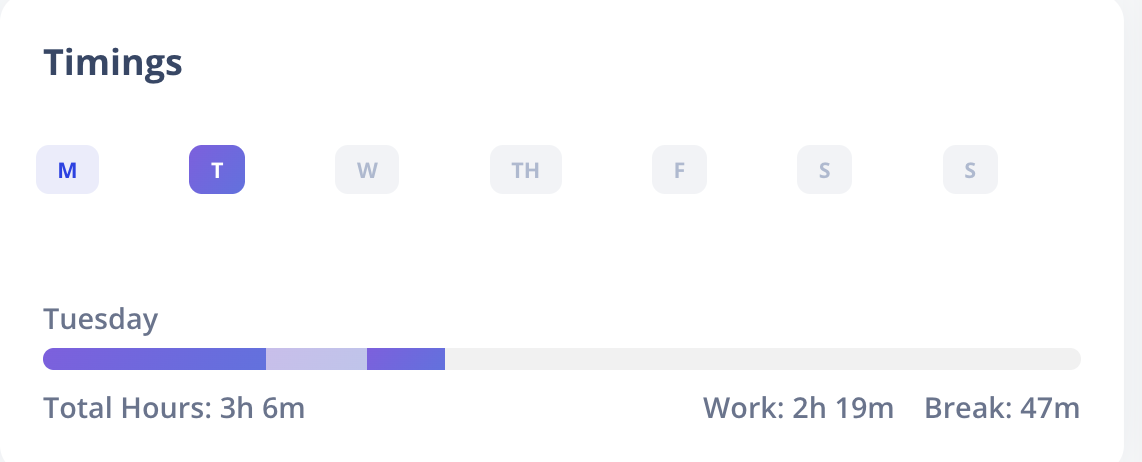
Located on the right side, this card displays weekly attendance distribution.
- All 7 days of the week (Monday–Sunday) are shown.
- Each day appears as a clickable button.
When a day is selected, the card displays:
- Total Time
- Work Time
- Break Time
Day Selection Rules
- The week starts from Monday.
- Future days in the current week are disabled.
- As each day passes, it becomes enabled automatically.
- Users can navigate back to any previous day within the current week.
You can switch between days to quickly analyze variations in work and break durations.
3. Attendance Table
Below the summary cards, a detailed attendance table displays daily records.
Date
- Displays the attendance date.
- A badge appears if the day is not a Regular working day.
Supported badges:
- Weekly Off
- Half Day Weekly Off
- Holiday
- Half Day Holiday
- Paid Leave
- Unpaid Leave
- Half Day Leave
- Half Day Unpaid Leave
Badge Tooltip Behavior
- Holiday → Displays the holiday name.
- Leave → Displays the leave type used.
- Weekly Off → No additional tooltip.
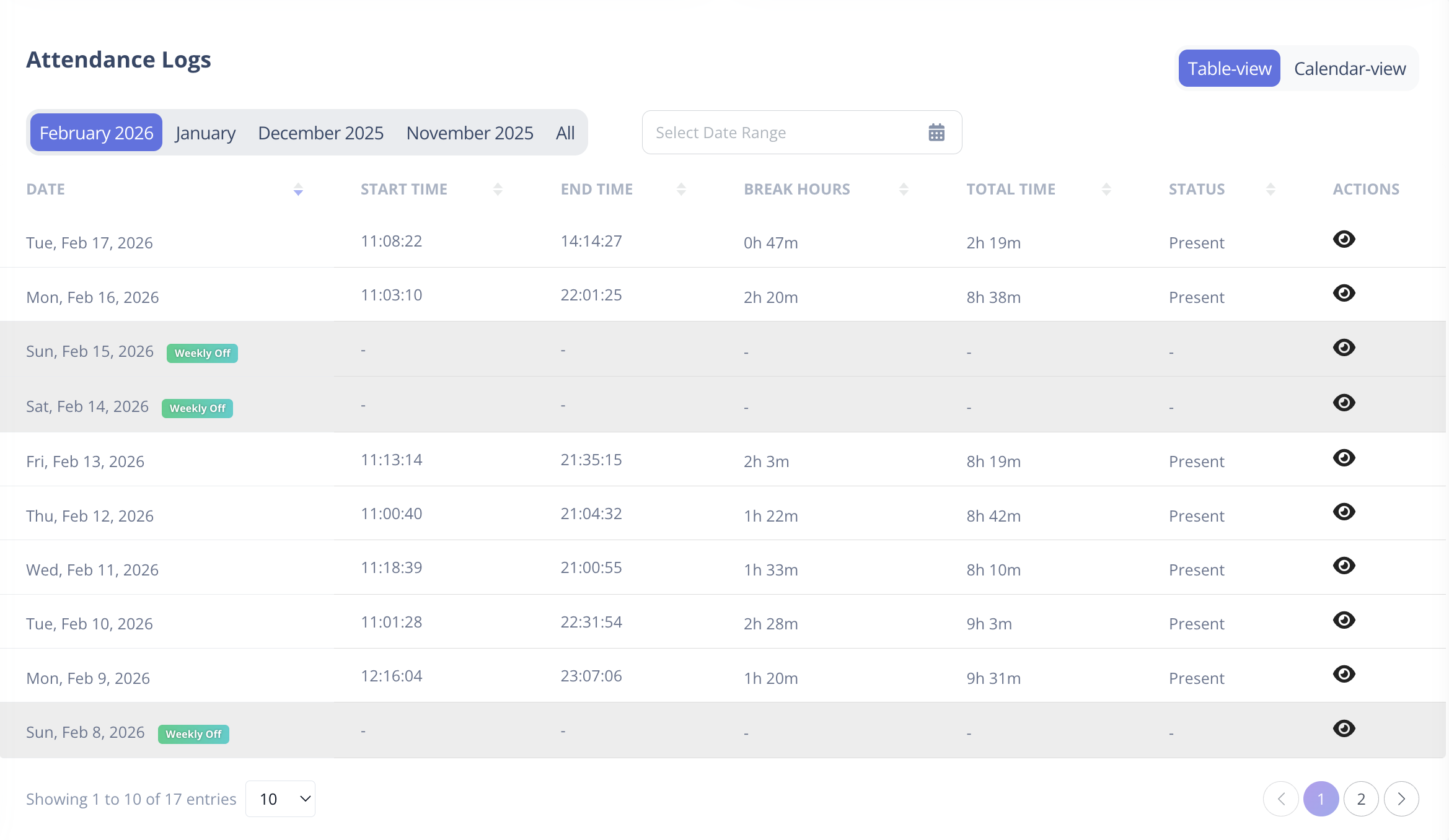
Start Time
- Displays the check-in time.
- If Geo-Fencing is enabled, a location icon appears next to the time.
- Clicking the icon opens a modal showing the exact check-in location on a map.
End Time
- Displays the check-out time.
- If Geo-Fencing is enabled, a location icon is shown.
- Clicking it opens a modal with the check-out location.
Break Time
- Displays the total break duration for the day.
Total Time
- Displays total working hours (excluding breaks).
Status
Indicates the evaluated attendance result.
Possible values:
- Present
- Absent
- Irregular
- Regularized
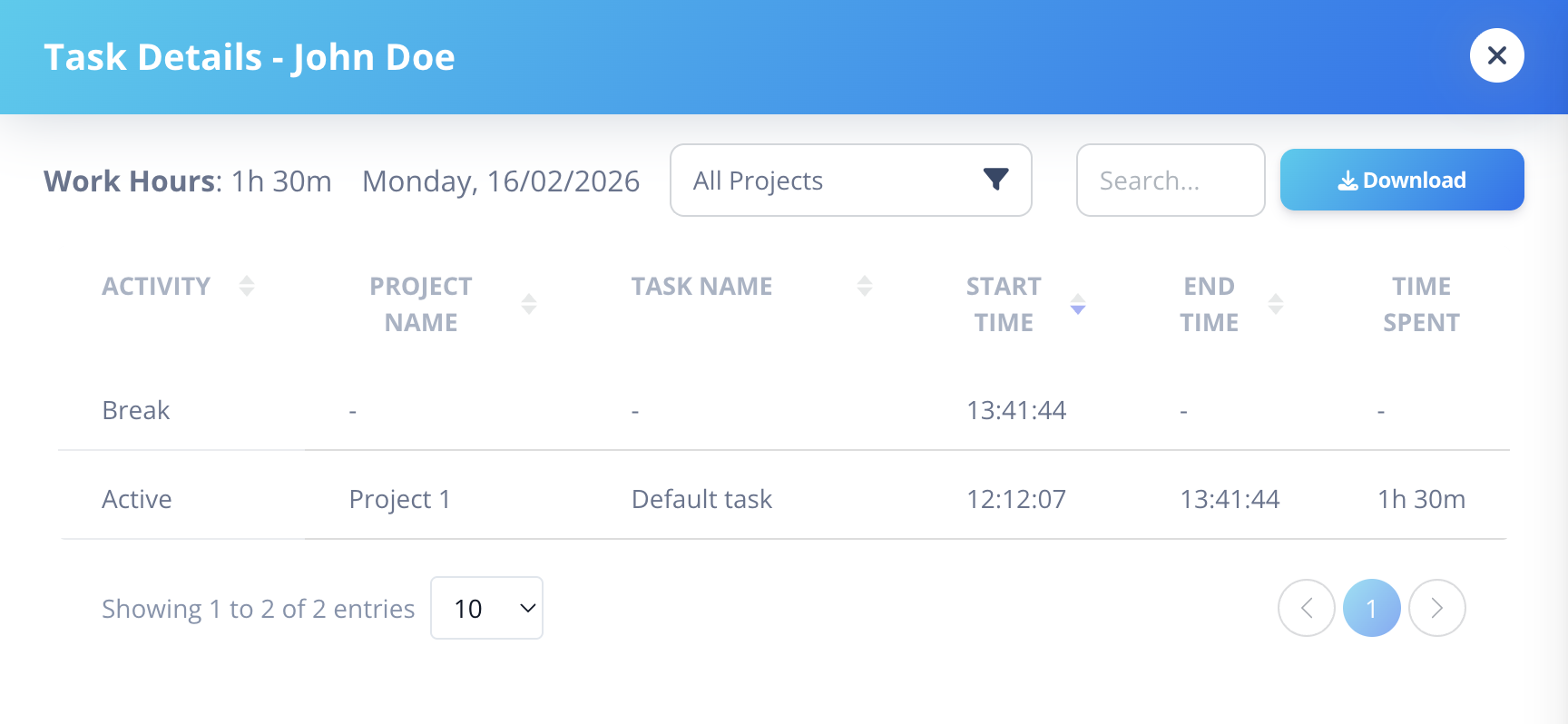
Task Information
If Project Management is enabled:
- Project and task details are displayed in the listing.
- Time spent per task is shown.
- Data is automatically captured from the Dashboard check-in system.
Attendance Status Evaluation
Attendance status is evaluated based on configured Shift rules.
Evaluation is performed automatically on the next day after attendance sync.
For detailed configuration of flexibility and evaluation rules, see
Shifts – Attendance Evaluation Logic
When is a User Marked Irregular?
A user may be marked Irregular based on shift flexibility settings.
1. Flexible Hours – Check-in Only
- Late check-in allowed within configured flexibility duration.
- Check-out must occur after shift end time.
2. Flexible Hours – Check-out Only
- Early check-out flexibility allowed.
- Check-in must occur within shift start limit.
3. Flexible on Total Time
- Attendance is valid if required total working hours are completed.
- Start/end time deviations are ignored if total time requirement is satisfied.
Flexibility Duration
If flexibility duration is configured (e.g., 30 minutes check-in flexibility), that buffer is considered during evaluation.
If conditions are not satisfied, the status is marked as Irregular.
Regularization
If attendance is marked Irregular, the user can request regularization.
In the Actions column:
-
Eye Icon
- Visible if Project Tracking is enabled.
- Used to view detailed attendance/task information.
-
Edit Icon
- Visible only when status is Irregular.
- Allows submission of a Regularization Request.
Regularization requests follow the configured approval workflow.