Shifts
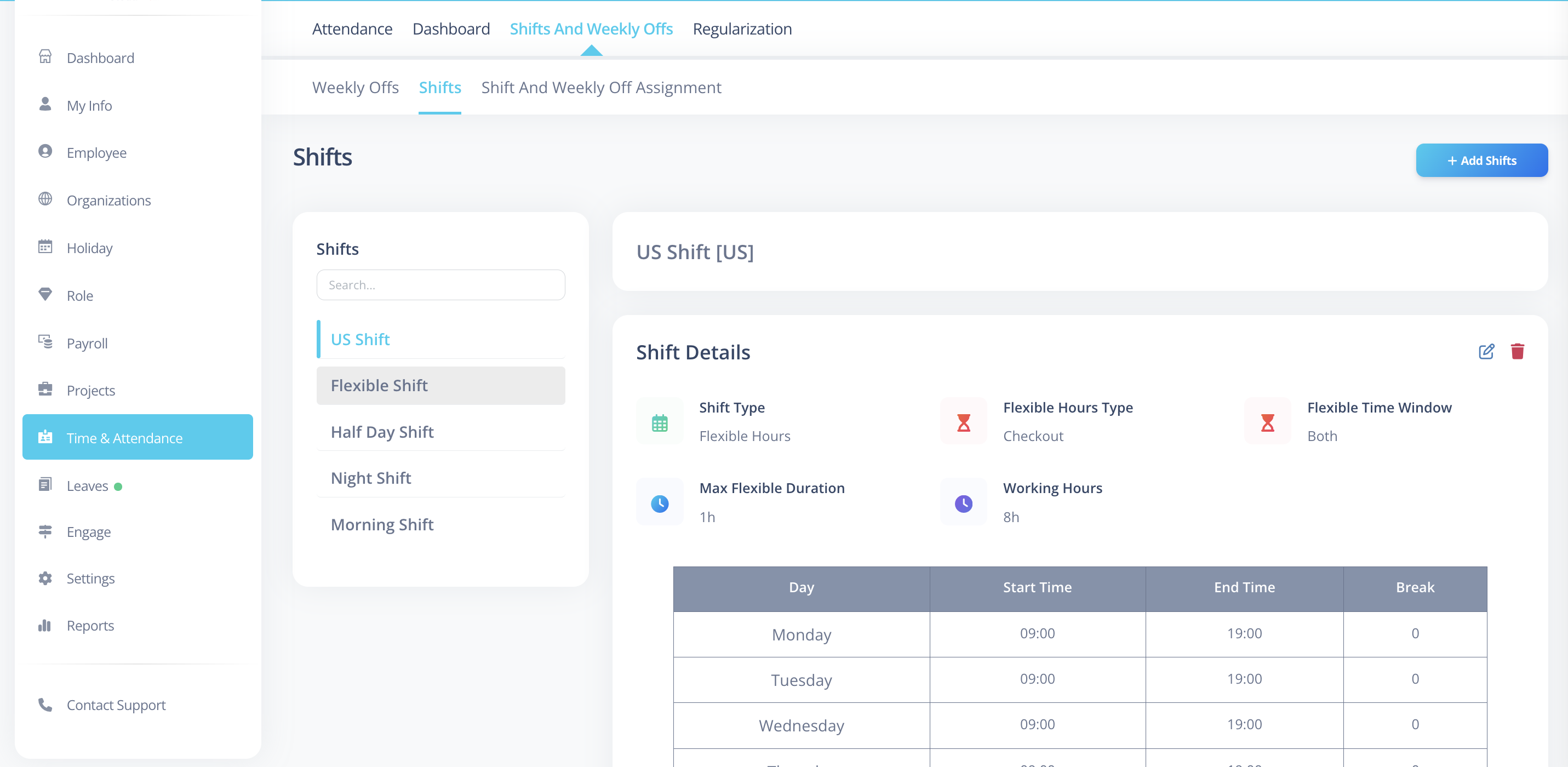
Shifts define employee working hours and attendance evaluation rules in VoxHRM.
They control:
- How attendance is calculated
- Late arrival and early exit detection
- Flexible timing behavior
- Total working hour validation
- Irregular attendance marking
Shifts directly impact how employee attendance status appears on the List Attendance page.
What is a Shift?
A Shift represents a predefined working schedule assigned to employees.
It defines:
- Working hours
- Start and end time
- Break duration
- Flexible timing rules (if applicable)
- Effective date range
- Attendance evaluation behavior
Each employee must be assigned to a shift for attendance tracking to function correctly.
How to Create a Shift
- Log in to VoxHRM.
- Navigate to Attendance.
- Click Shifts
- Click Add Shift.
- Enter shift details.
- Configure working days and timings.
- Click Save.
Required Fields
| Field | Description |
|---|---|
| Name | Must be unique |
| Code | Unique identifier for the shift |
| Shift Type | Fixed Hours or Flexible Hours |
| Working Hours | Total required working duration |
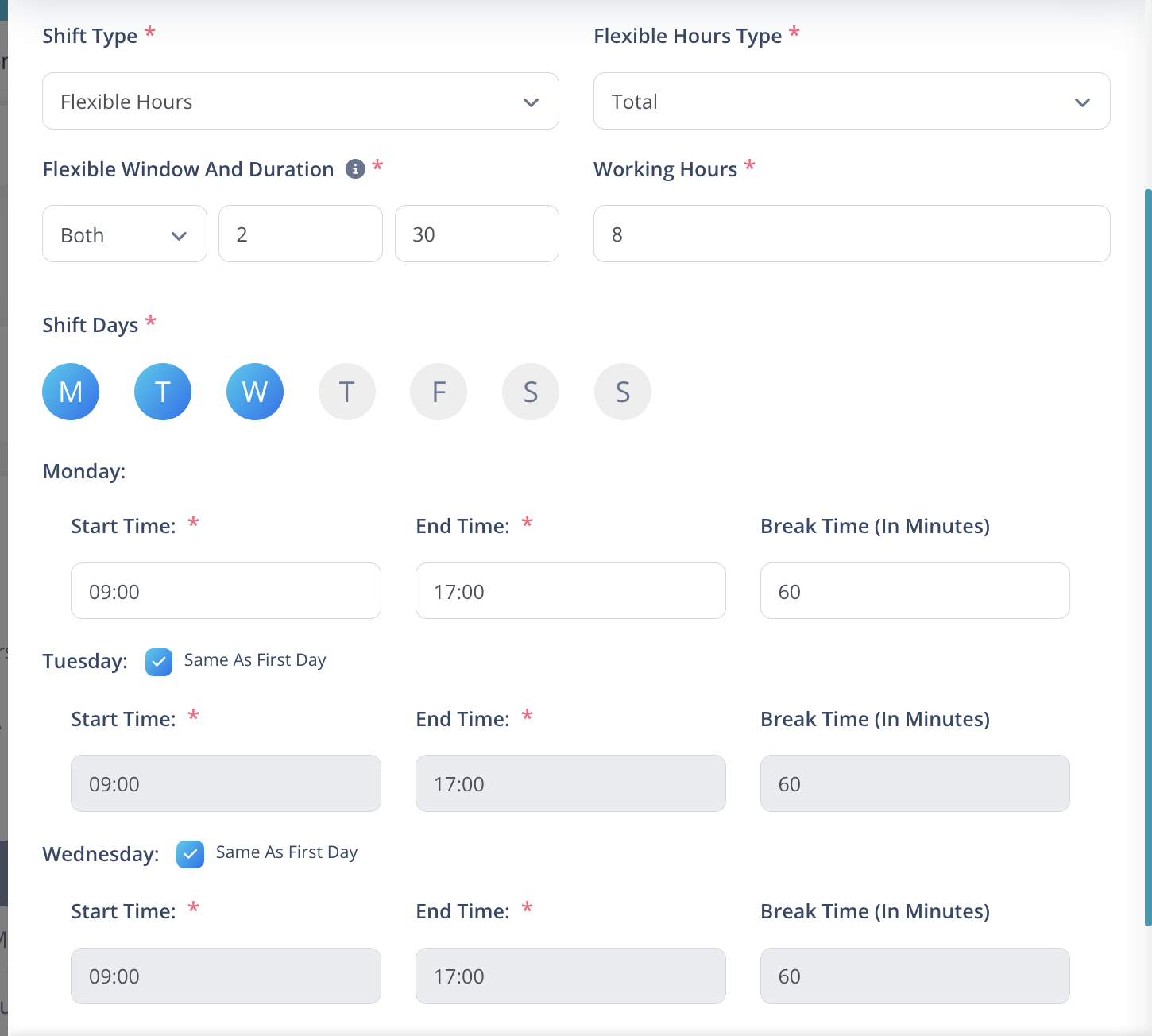
| Working Days Configuration | Start time, end time, and break duration for each selected day |
For each working day:
- Day
- Start Time
- End Time
- Break Duration (in minutes)
At least one working day must be configured.
Flexible Shift Configuration
When Shift Type = Flexible Hours, the following additional fields appear.
1️⃣ Flexible Hours Type
Defines what rule is relaxed.
Options:
- Check-in
- Check-out
- Total
2️⃣ Flexible Window Duration
Defines how flexibility is applied relative to shift time.
You configure:
- Option: Before / After / Both
- Duration: Time in minutes
Flexible Configuration Examples
Assume:
- Shift Start Time = 9:00 AM
- Shift End Time = 6:00 PM
- Working Hours = 8 hours
Check-in Flexibility
Check-in flexibility defines the allowed time range around the shift start time.
Assume shift start time is 9:00 AM and flexibility duration is 30 minutes.
Option: After (Grace Period After Shift Start)
Employee can check in between:
9:00 AM – 9:30 AM
- Check-in after 9:30 AM → may be marked as Irregular
- Check-out must still follow standard shift end rules.
Option: Before (Early Check-in Window)
Employee can check in between:
8:30 AM – 9:00 AM
- Check-in after 9:00 AM is considered late.
Option: Both (Flexible Window Before & After)
Employee can check in between:
8:30 AM – 9:30 AM
- Check-in outside this range → marked as Irregular
Check-out Flexibility
Check-out flexibility defines how early or late an employee can check out compared to the shift end time.
Option: Before
Duration: 30 minutes
Employee may check out between:
5:30 PM – 6:00 PM
- Checking out before 5:30 PM → Marked as Irregular
- Standard shift end remains 6:00 PM
Option: After
Duration: 30 minutes
Employee may check out between:
6:00 PM – 6:30 PM
- Checking out after 6:30 PM may affect attendance calculations
- Standard shift end remains 6:00 PM
Total Time Flexibility
When Flexible Hours Type is set to Total, attendance is calculated based only on the total number of hours worked — not strict check-in or check-out time windows.
In this configuration:
- Start and end times are flexible.
- Only total working duration is evaluated.
If required working hours = 8 hours:
- Worked 8 hours or more → Present
- Worked less than 8 hours → Irregular
Time window rules (check-in/check-out ranges) are not enforced unless separately configured.
Shift Types
Fixed Hours
- Strict start and end times.
- Late arrival and early exit are calculated exactly.
- Violations result in
Irregular.
Flexible Hours
- Allows controlled deviation.
- Evaluated based on Flexible Hours Type and Flexible Window Duration.
- Total time must still meet configured working hours (unless otherwise defined).
Attendance Evaluation Logic
Attendance is automatically evaluated based on shift rules.
Evaluation Timing
Attendance is synchronized and evaluated on the next day.
After evaluation, status may be:
- Present
- Absent
- Irregular
- Regularized
Statuses are visible on the
List Attendance page.
When is Attendance Marked Irregular?
Attendance becomes Irregular if:
- Check-in exceeds allowed flexible window
- Check-out violates shift configuration
- Total working hours are less than required
- Flexible duration limits are exceeded
Irregular entries allow employees to request
Regularization.
Regularization
If attendance is marked as Irregular:
- The employee can submit a Regularization Request.
- Once approved, the attendance status changes to Regularized.
- The updated status is reflected in the List Attendance page.
Regularization requests are always validated against the configured shift rules.
Global Shift
A Global Shift:
- Acts as the default shift configuration.
- Applies when no specific shift is assigned to a user.
- Can be configured from App Settings.
This ensures attendance calculations always have a fallback configuration.
Important Rules
- Shift Name must be unique.
- Shift Code must be unique.
- Flexible Configuration is mandatory when Shift Type = Flexible.
- Each working day must have a valid Start Time and End Time.
- Break Duration must be defined.
- Working Hours must logically align with the configured timings.
Best Practices
- Use meaningful names (General Shift, Night Shift).
- Avoid overlapping timings.
- Use flexibility only where operationally necessary.
- Keep flexible duration reasonable to avoid excessive irregular cases.
- Always test shift logic before assigning to large employee groups.