Notification Templates
Notification Templates
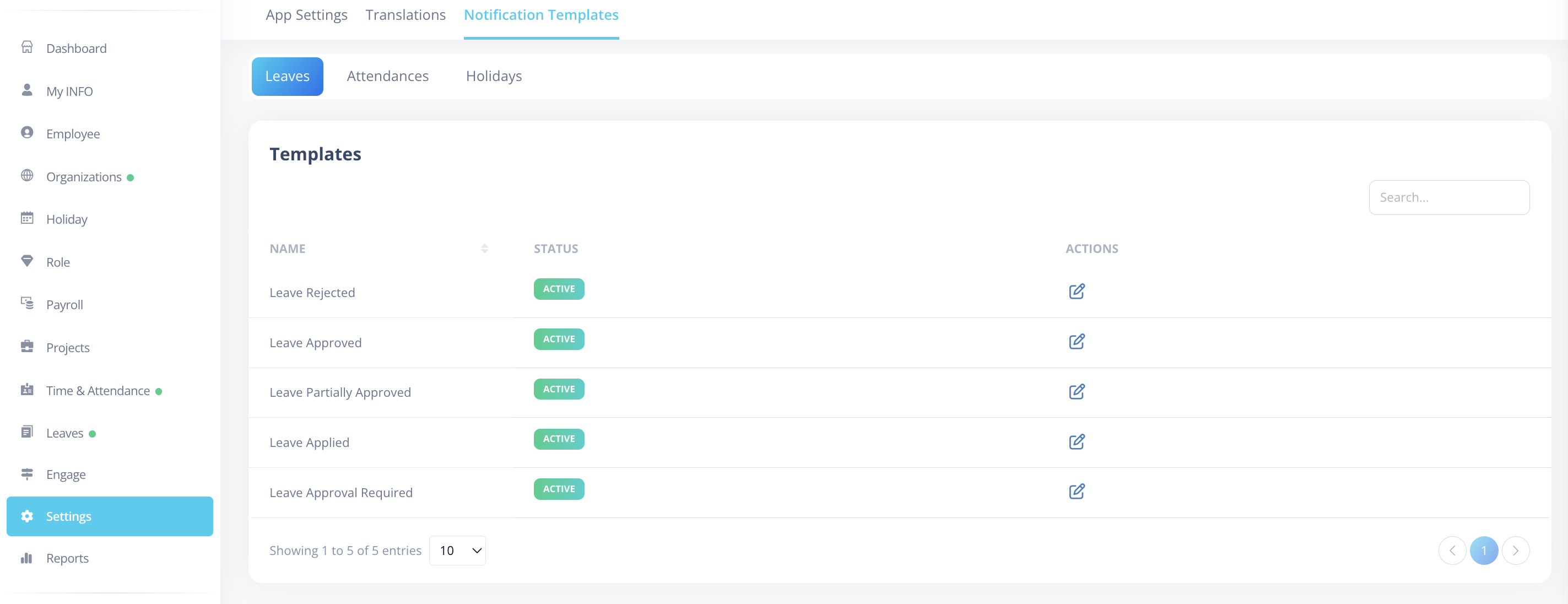
The Notification Templates page allows administrators to configure how system notifications are delivered across different modules:
- Leave
- Attendance
- Holidays
Each section displays a listing table containing:
- Name – Template name
- Status – Active / Inactive
- Actions – Edit
- Templates cannot be created from this page.
- Templates cannot be deleted.
- Only editing existing templates is supported.
How to Edit a Template
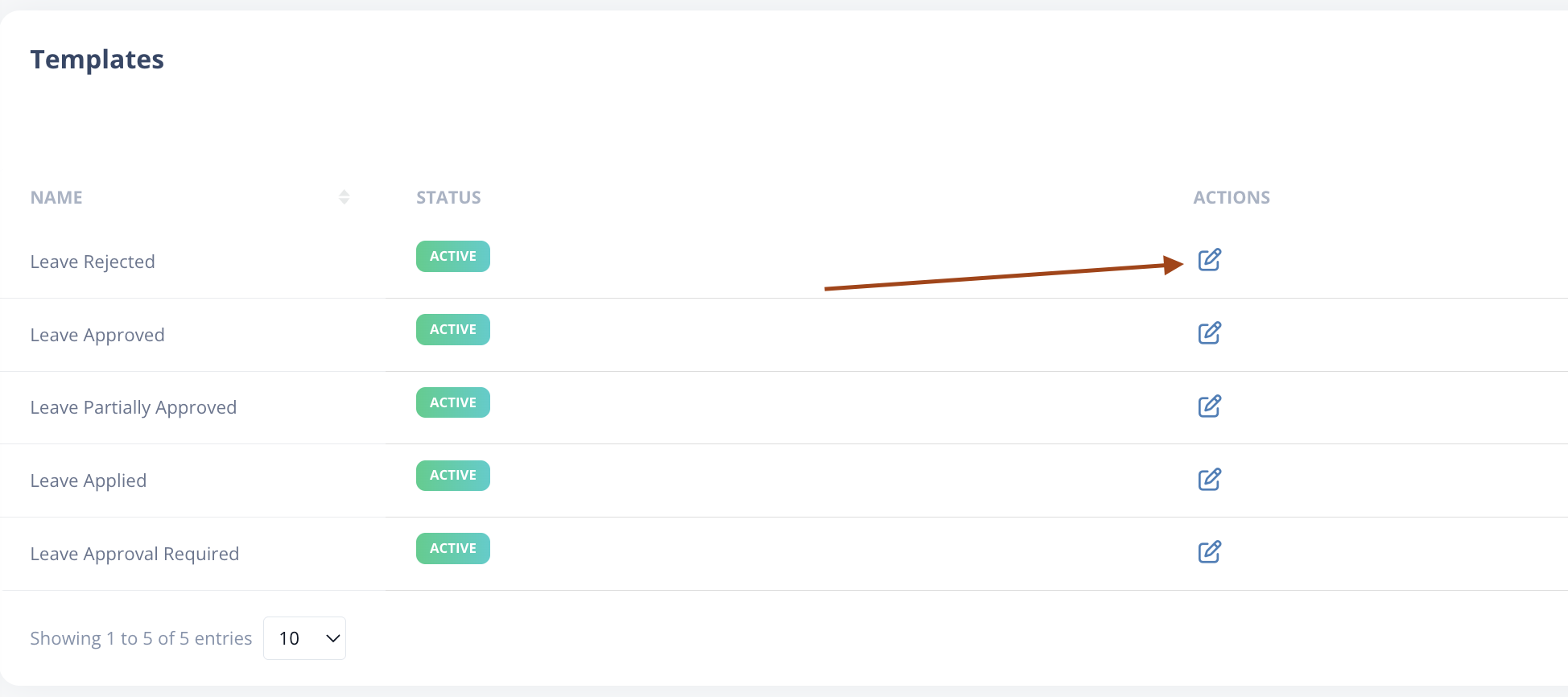
- Go to Settings → Notification Templates.
- Select the relevant section (Leave / Attendance / Holidays).
- Click under the Actions column.
The edit page contains two main sections:
Section 1: Template Details
Name
- This field is not editable.
Status
- Active → Notification will be sent.
- Inactive → Notification will not be triggered.
If you want to temporarily stop a notification, simply mark it as Inactive instead of modifying the template content.
Include Users
Select specific users who should receive this notification.
Exclude Users
Select users who should not receive this notification.
Exclude takes precedence over all other selections.
If a user:
- Is added in Include Users
- Belongs to a selected Role
- Is part of the Leave approval chain
But is also added to Exclude Users,
they will not receive the notification.
If a user wants to stop receiving notifications, simply add them to the Exclude Users list.
Roles
Select roles whose assigned users should receive this notification
A special role called Self is available.
- “Self” refers to the user related to the action.
- In Leave notifications → The employee who applied for leave.
- In Attendance notifications → The employee whose attendance record is affected.
If Self is selected, the concerned employee will also receive the notification.
- The user must be active to receive notifications.
- If the same user is added to Exclude Users, exclusion will still take precedence.
- “Self” works as a system-defined role and does not appear as a standard user role.
Channels
Available delivery channels:
- Mobile Push
- SMS
- Slack
- Web Push
- SMS and Slack are currently not supported.
- Email, Mobile Push, and Web Push are supported.
Custom Email
Allows configuration of custom email behavior (if applicable).
Section 2: Template Body
The UI is divided into two panels:
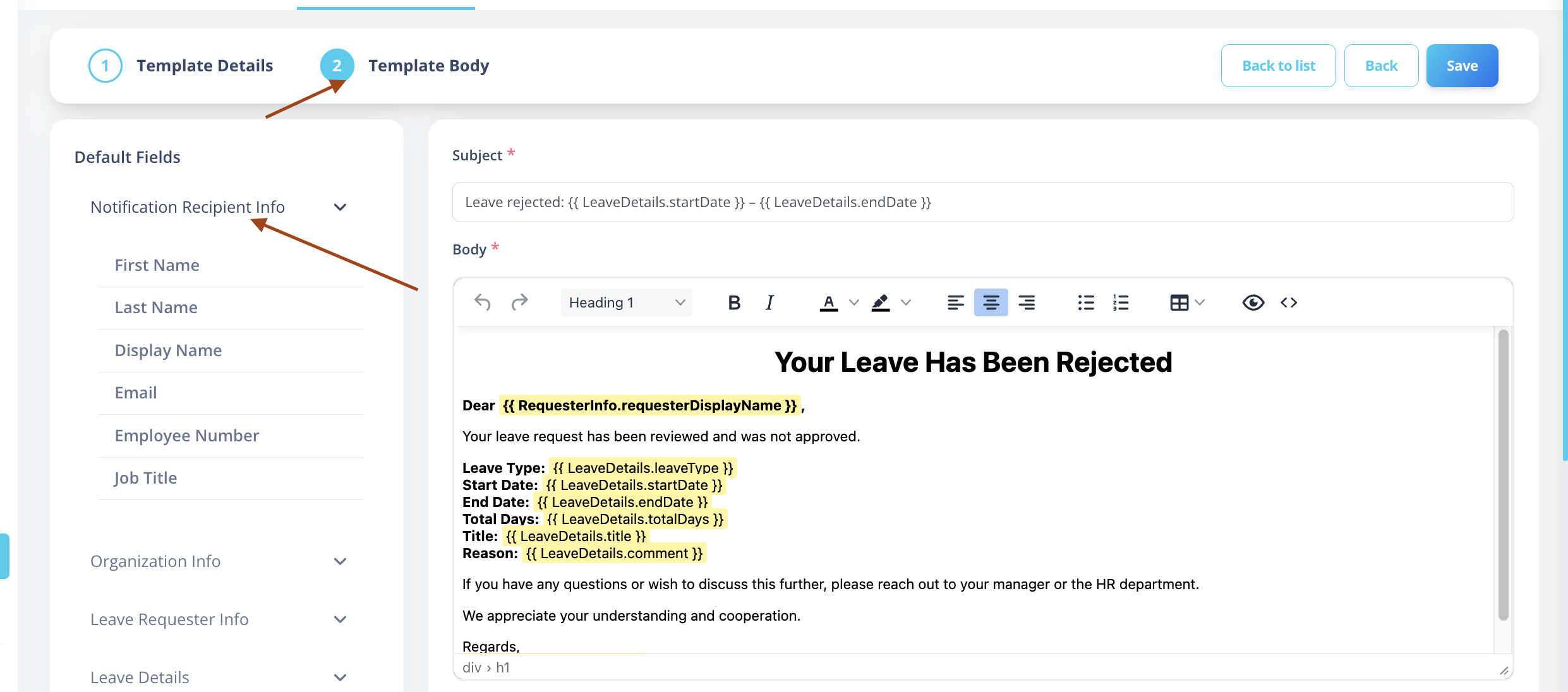
Left Panel – Placeholders
Displays available placeholders relevant to the selected template.
Examples:
- Leave templates → Leave-related fields
- Attendance templates → Attendance-related fields
- Holiday templates → Holiday-related fields
Right Panel – Template Content
Subject
- Email subject line.
- Supports placeholders.
- Standard input field.
Body
- Rich text editor.
- Supports placeholders.
Push Title
- Used for Mobile Push and Web Push.
- Supports placeholders.
Push Body
- Rich text editor.
- Supports placeholders.
How to Insert a Placeholder
- Click where you want to insert the placeholder.
- Select the required field from the left panel.
- Click on the placeholder.
- It will be automatically inserted.
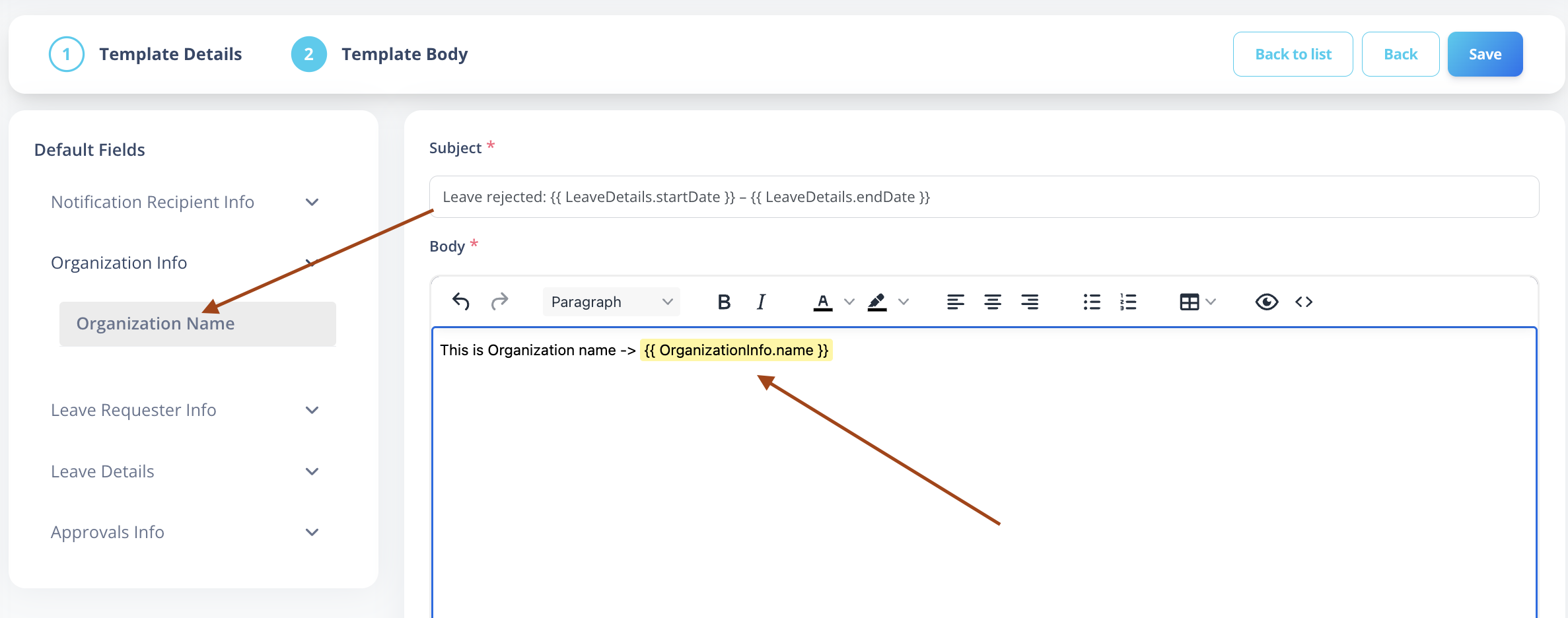
- Valid placeholders appear with a yellow background.
- Manually typed placeholders will not work.
- Only placeholders selected from the provided list are supported.
Special Behavior: Leave Approval Chain
For Leave notifications:
- The configured leave approval chain is respected.
- Notifications are sent based on approval levels.
If a user is part of the approval chain but is added to Exclude Users,
they will not receive the notification.