Salary Structure
A salary structure is the breakdown of how a specific employee's annual CTC is distributed across the earning and deduction components in their assigned Pay Group. Each employee has their own salary structure.
Two employees in the same Pay Group can have different CTC values — the system calculates each person's component amounts separately based on their own CTC.
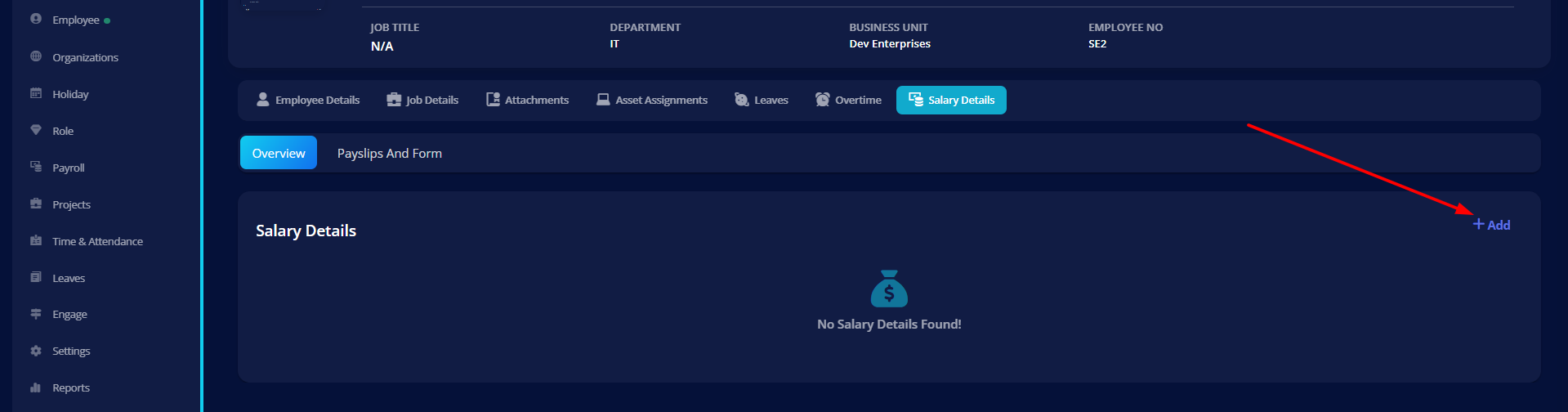
Navigate to: Employees → [Employee Name] → Salary Details
How It Works
- Salary components are created and attached to a Pay Group.
- You assign the employee to a Pay Group and enter their Annual CTC.
- The system automatically calculates the monthly and annual amount for each component based on the CTC.
- Only components that are attached to that Pay Group appear in the salary structure.
- When payroll runs, the salary structure is used to calculate this employee's net pay.
Assigning a Salary Structure to an Employee
- Go to Employees and open the employee's profile.
- Click the Salary Details section.
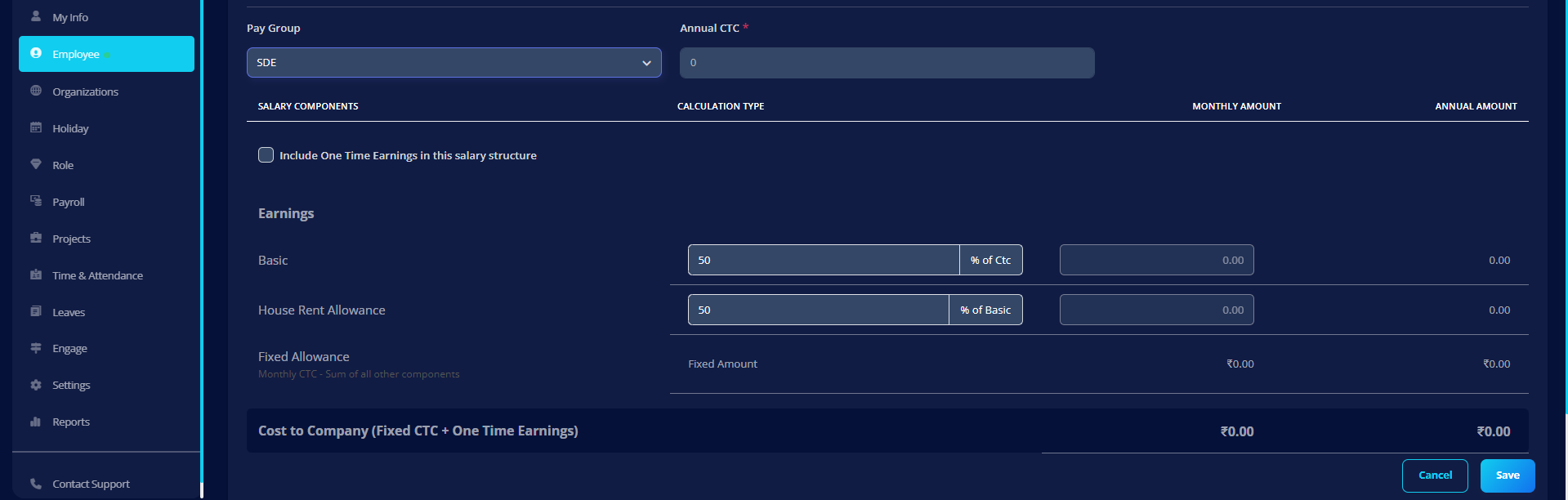
- From the Pay Group dropdown, select the Pay Group this employee belongs to. The system loads the components configured for that Pay Group.
- Enter the employee's Annual CTC. The system automatically calculates the monthly and annual breakdown for each component.
- Review the component table — it shows Salary Component, Calculation Type, Monthly Amount, and Annual Amount.
- Optionally check Include one-time earnings if this employee should receive one-time earning components in this pay period.
- Review and configure any Deductions appearing below the earnings table (set custom amounts or end conditions for recurring deductions).
- Click Save. The salary structure is now active and will be used in the employee's upcoming pay run.
Salary Structure Field Reference
| Field | Required | Description |
|---|---|---|
| Pay Group | Yes | The Pay Group this employee belongs to. This determines their pay cycle, pay frequency, and the set of components in their salary. |
| Annual CTC | Yes | The employee's total annual cost to the company. The system breaks this down into monthly amounts per component automatically. |
| Monthly Amount | — | Calculated automatically. Shows how much this employee earns per month for each component. |
| Annual Amount | — | Calculated automatically per component (monthly × 12). |
| Calculation Type | — | Shows whether this component uses a fixed amount or a percentage of another component. |
| Include One-Time Earnings | — | Check this to include any one-time payouts (such as a bonus) in the current pay period for this employee. |
Notes on Editing the Salary Structure
You can edit an employee's salary structure at any time before the current period's pay run is finalized. Changes made after a pay run is finalized will apply from the next pay period.
If an employee receives a CTC revision, update the Annual CTC value on their Salary Details page. The system recalculates all percentage-based components automatically. Flat components retain their set values unless manually updated.
If your Pay Group includes a Special Allowance component, it will always absorb any unallocated CTC — ensuring the sum of all components equals the CTC exactly. Check that Special Allowance is non-negative after saving.
Why Components Differ Between Pay Groups
Different Pay Groups can serve employees in different locations, with different salary structures or applicable deductions. Keeping components separate per Pay Group gives you flexibility — for example, a Pay Group for India can include PF and ESI, while one for another country does not.
Important Rules
- Components must be attached to the Pay Group before you can set up a salary structure for an employee in that group.
- A component can be used in more than one Pay Group.
- Avoid removing components from a Pay Group once payroll has started for a period.
- Employees without an assigned Pay Group and salary structure will not be included in the pay run and will not receive a payslip for that period.
Best Practices
- Always attach Basic Salary first in the earnings list so dependent components (e.g., HRA as % of Basic) calculate correctly.
- Verify the employee count shown on the pay run card matches your expected headcount before processing.
- Test payroll with one employee before running for the full organization.
Related Setup
- Pay Group Configuration — attach and configure components for a Pay Group
- Pay Groups — create and manage Pay Groups
- Pay Runs — process and finalize payroll